Reports and Spreadsheet Sync
- T3 API Reports
- How to get started with T3 API Reports?
- Available Report Endpoints
- Advanced Usage
- Super Reports
- Examples
- Limits
- Caching and Timing
- Troubleshooting
- Spreadsheet Sync
- How does it work?
- How to get started with Spreadsheet Sync?
- Demo of Advanced Spreadsheet Sync Usage
- Next Steps
T3 API Reports
T3 API Reports allow you to export entire Metrc datasets in a single request. Report endpoints can be filtered and sorted just like collection endpoints.
An example: - The /v2/packages/active collection endpoint returns one page of active packages. To export all your active packages, you would need to request multiple pages to load all your active packages. - The /v2/packages/active/report report endpoint returns all your active packages. This returns the entire dataset in one request, so the response can be very large.
How to get started with T3 API Reports?
Become a T3+ subscriber.
T3 API Reports are only available to T3+ subscribers. You can start your 30 day free trial here.
Available Report Endpoints
Every report path has a plain form and, in most cases, a super form that also loads related data. See Super Reports for the difference.
| Data | Report | Super report |
|---|---|---|
| Active Packages | /v2/packages/active/report | /v2/packages/active/super/report |
| Inactive Packages | /v2/packages/inactive/report | /v2/packages/inactive/super/report |
| In Transit Packages | /v2/packages/intransit/report | /v2/packages/intransit/super/report |
| On Hold Packages | /v2/packages/onhold/report | /v2/packages/onhold/super/report |
| Transferred Packages | /v2/packages/transferred/report | (none) |
| Items | /v2/items/report | /v2/items/super/report |
| Active Harvests | /v2/harvests/active/report | /v2/harvests/active/super/report |
| Inactive Harvests | /v2/harvests/inactive/report | /v2/harvests/inactive/super/report |
| On Hold Harvests | /v2/harvests/onhold/report | /v2/harvests/onhold/super/report |
| Vegetative Plants | /v2/plants/vegetative/report | /v2/plants/vegetative/super/report |
| Flowering Plants | /v2/plants/flowering/report | /v2/plants/flowering/super/report |
| On Hold Plants¹ | /v2/plants/onhold/report | /v2/plants/onhold/super/report |
| Inactive Plants¹ | /v2/plants/inactive/report | /v2/plants/inactive/super/report |
| Active Mother Plants | /v2/plants/mother/active/report | /v2/plants/mother/active/super/report |
| On Hold Mother Plants | /v2/plants/mother/onhold/report | /v2/plants/mother/onhold/super/report |
| Inactive Mother Plants | /v2/plants/mother/inactive/report | /v2/plants/mother/inactive/super/report |
| Active Plant Batches | /v2/plantbatches/active/report | /v2/plantbatches/active/super/report |
| On Hold Plant Batches | /v2/plantbatches/onhold/report | /v2/plantbatches/onhold/super/report |
| Inactive Plant Batches | /v2/plantbatches/inactive/report | /v2/plantbatches/inactive/super/report |
| Active Sales | /v2/sales/active/report | /v2/sales/active/super/report |
| Inactive Sales | /v2/sales/inactive/report | /v2/sales/inactive/super/report |
| Available Tags | /v2/tags/available/report | /v2/tags/available/super/report |
| Used Tags | /v2/tags/used/report | /v2/tags/used/super/report |
| Voided Tags | /v2/tags/voided/report | /v2/tags/voided/super/report |
| Strains | /v2/strains/report | /v2/strains/super/report |
| Active Locations | /v2/locations/active/report | /v2/locations/active/super/report |
| Incoming Active Transfers² | /v2/transfers/incoming/active/report | (none) |
| Incoming Inactive Transfers² | /v2/transfers/incoming/inactive/report | (none) |
| Outgoing Active Transfers² | /v2/transfers/outgoing/active/report | (none) |
| Outgoing Inactive Transfers² | /v2/transfers/outgoing/inactive/report | (none) |
| Rejected Transfers² | /v2/transfers/rejected/report | (none) |
| Hub Transfers²⁴ | /v2/transfers/hub/report | (none) |
| Incoming Transfer Manifests³ | /v2/transfers/incoming/manifest/report | (none) |
| Outgoing Transfer Manifests³ | /v2/transfers/outgoing/manifest/report | (none) |
| Rejected Transfer Manifests³ | /v2/transfers/rejected/manifest/report | (none) |
| Hub Transfer Manifests³⁴ | /v2/transfers/hub/manifest/report | (none) |
¹ On hold and inactive plant reports exclude mother plants. The pooled and mother-specific reports partition your plants rather than overlap, so there is no double-counting — but if you want every on hold plant, request both /v2/plants/onhold/report and /v2/plants/mother/onhold/report and combine them.
² Transfer reports have no super form. They return one row per transfer, with no include support. If you need the packages or transporters on each transfer, use a transfer manifest report (below) or page through a supercollection such as /v2/transfers/outgoing/active/super.
³ Transfer manifest reports work differently from every other report. They load packages and transporters for each transfer automatically — there is no include to add and no way to switch it off — then cross-join the result, so you get one row per package per transporter rather than one row per transfer. That is why their columns are prefixed by the object they came from (transfer., package., transporter., plus delivery. and transporterDetails. on outgoing, and transporterDetails. only on hub). Because that loading is automatic, there is no super form to graduate to. A super variant of each briefly existed and has been removed: it returned the same columns while making the loading opt-in, so a request without an include came back empty. If you were calling one, drop /super from the path — the report in the table is a superset of what it did.
⁴ Hub transfer reports cover the transfers you transport. These are the rows on Metrc's "Transfers Hub" page, where your license is neither the shipper nor the recipient — so they appear in no other transfer report. Two things make them unusual:
- There is no active/inactive split. Metrc serves the whole collection from one path with no state parameter, so there is a single
/v2/transfers/hub/reportrather than the active/inactive pair every other transfer collection has. - The manifest form is the cheapest of the three, at one Metrc request per transfer instead of two or four. Metrc returns the delivery and the transporter already flattened onto the record and embeds the driver legs, so packages are the only thing left to fetch. Those flattened fields appear under
transfer.— there is nodelivery.ortransporter.group.transporterDetails.shows the first driver leg only; whentransfer.multiVehicleortransfer.isLayoveris true, the remaining legs are in the JSON response but cannot be represented in a flat grid. Both flags are in the default columns so you can tell when that is happening.
Two things follow that surprise people:
rowLimitcounts transfers, not rows. It is applied before the join, so&rowLimit=100can return several hundred rows.- They cost budget even though they are plain reports. Loading related data for every transfer means these reports run out of the Metrc request budget at roughly 5,000 transfers, well before the 50,000 row cap their documentation shows. Filter to a date range or add
&rowLimit=5000.
The tag, strain and location super reports return the same columns as their plain form. Metrc exposes no related data for those objects, so there is nothing extra for a super report to attach; they exist so every path follows the same pattern.
Advanced Usage
Filtering and Sorting
T3 API Reports can be configured to include filters, sorting, and can return either JSON or CSV data.
- If you wanted to only return packages in the Bulk Storage room, you would add
&filter=locationName__eq:Bulk Storageto your Sync Link - If you wanted to control which columns you want in the report, you would add
&columns=label,productionBatchNumber,labTestingStateNameto your Sync Link
Details here: https://api.trackandtrace.tools/v2/docs/#/Reports/get_v2_packages_active_report
Reporting Across Multiple Licenses
Reports are the only endpoints that accept more than one license. Repeat licenseNumber to pull several into one document:
https://api.trackandtrace.tools/v2/packages/active/report?licenseNumber=LIC-00001&licenseNumber=LIC-00002
A comma-joined list does not work — repeat the parameter. Repeating the same license returns a 400, and at most 20 licenses may be requested at once.
Rows come back in the order you list the licenses. Every row of LIC-00001 precedes every row of LIC-00002. sort orders rows within each license, not across them.
Add licenseNumber to your columns so you can tell the rows apart. Every record already carries it, so the column costs nothing extra:
...&licenseNumber=LIC-00001&licenseNumber=LIC-00002&columns=licenseNumber,label,quantity
It is not a default column, so single-license reports are unchanged. On the transfer manifest reports the field is transfer.licenseNumber, because those rows are built from a transfer/delivery/package hierarchy.
The limits are totals, not per-license allowances. This is the part worth reading twice:
- The row cap — 50,000 for a report, 5,000 for a super report — applies to the sum. Two licenses holding 30,000 records each are 60,000 records, and the request is rejected. The error names each license's count so you can see which one to filter.
rowLimitis a total, filled in license order.&rowLimit=600against a first license holding 400 records returns all 400 of the first and the first 200 of the second — and never asks Metrc for the rest of the second.- The 10,000 Metrc request budget is likewise one total across all licenses.
A report is all-or-nothing. If any license fails — most often because your account cannot access it — the whole request fails. A partial report would look complete, and a spreadsheet has no way to notice the difference.
A multi-license request counts as one report request against your rate limits, no matter how many licenses it names.
#!/usr/bin/env python3
# /// script
# requires-python = ">=3.8"
# dependencies = [
#     "httpx",
# ]
# ///
"""Pull active packages across several licenses into one CSV."""

import csv
import io

import httpx

SECRET_KEY = "YOUR_SECRET_KEY"
LICENSE_NUMBERS = ["EX-00001", "EX-00002"]

response = httpx.get(
    "https://api.trackandtrace.tools/v2/packages/active/report",
    params=[
        ("secretKey", SECRET_KEY),
        ("contentType", "csv"),
        ("columns", "licenseNumber,label,quantity"),
        ("prependCsvMetadata", "false"),
        # Repeat the parameter, once per license. httpx serializes a list of
        # tuples as licenseNumber=EX-00001&licenseNumber=EX-00002, which is
        # exactly what the endpoint expects.
        *[("licenseNumber", x) for x in LICENSE_NUMBERS],
    ],
    timeout=120.0,
)
response.raise_for_status()

rows = list(csv.DictReader(io.StringIO(response.text)))

# Rows arrive grouped by license, in the order the parameters were sent.
for license_number in LICENSE_NUMBERS:
    matching = [x for x in rows if x["License Number"] == license_number]
    print(f"{license_number}: {len(matching)} packages")

print(f"total: {len(rows)}")
Limiting the Number of Rows
Reports return the entire matching dataset by default, which can be very large. Add &rowLimit=100 to your Sync Link to cap how many records come back.
Start with a small rowLimit while you are still building the request. Getting the filters and columns right usually takes a few attempts, and there is no reason for each attempt to pull your whole dataset. &rowLimit=10 returns in a second or two and shows you the exact same columns and formatting the full report will produce — so you can confirm your filter matches what you expect, check that a columns list is spelled correctly, and see the CSV layout before committing to the real run. Drop the parameter when it all looks right.
- The minimum is
1. OmitrowLimitto return everything. - Every report also enforces a hard cap of its own: 50,000 records for a report, 5,000 for a super report. A
rowLimitabove that cap is clamped down to it, which is the same as leavingrowLimitoff. - Both the cap and
rowLimitare totals across every requested license, not per-license allowances. See Reporting Across Multiple Licenses. - A
rowLimitcan rescue a request that would otherwise be rejected as too large. A license with 100,000 active packages will normally fail, but&rowLimit=500succeeds and returns 500 packages. - Which records you get depends on the sort order. Pair
rowLimitwithsortfor a predictable result, for example&sort=label:asc&rowLimit=100. - The limit counts top-level records. Reports that expand one record into several rows — such as the transfer manifest reports, or a super report cross-joined on an
includein CSV format — can return more rows than the limit. - Changing
rowLimitloads fresh data, because it changes which records are fetched. Changingcolumns,contentType,contentDispositionorprependCsvMetadatadoes not — those are applied to data already loaded, so re-requesting with different columns is served from cache and returns immediately.
Specifying Field Names
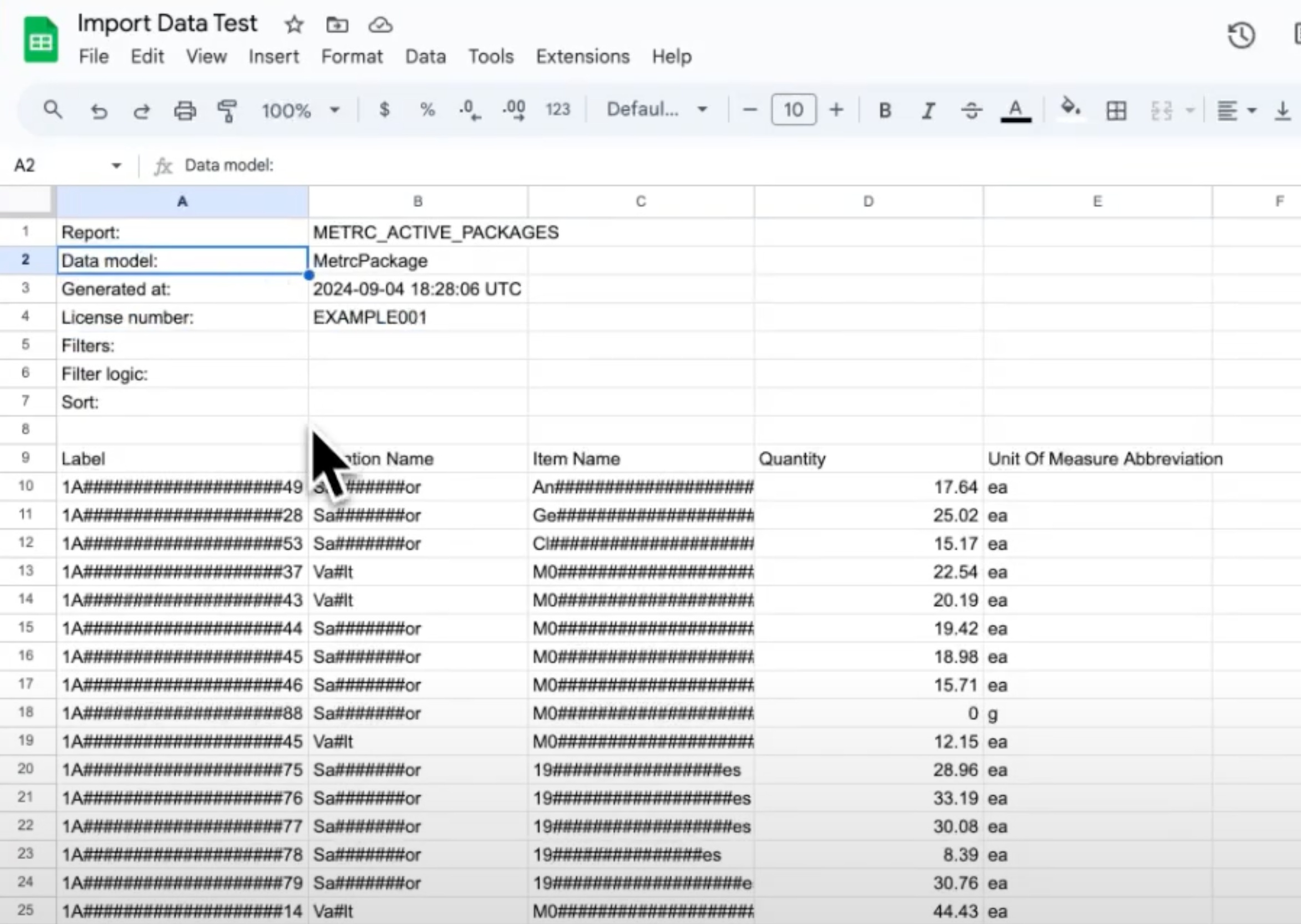
Example T3 API output in CSV format
Each report header shows dataModel. The dataModel describes what objects are being returned for the current report, and what columns are available.
In the API response, the data model is listed as MetrcPackage. To see a list of columns for MetrcPackage, refer to the API docs: at the bottom of the page, there is a Schemas section:
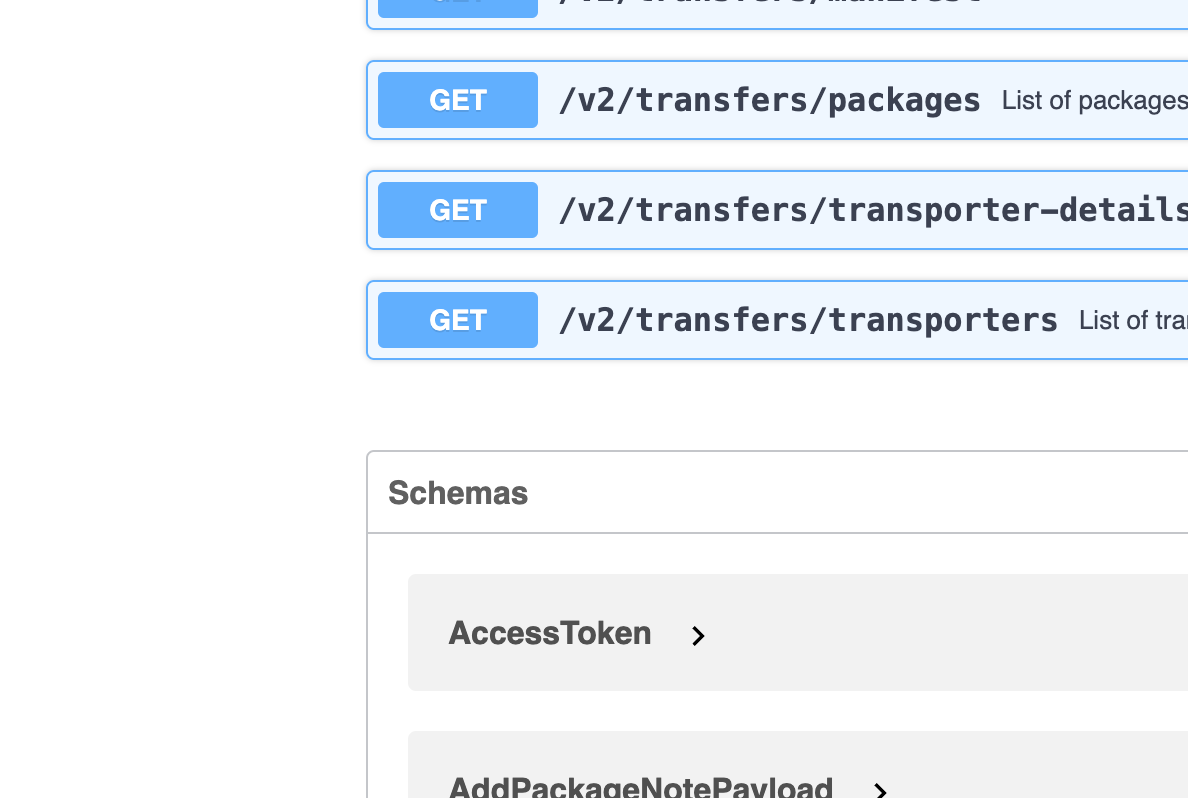
T3 API schemas
In Schemas, find MetrcPackage and expand it to see all the possible columns:
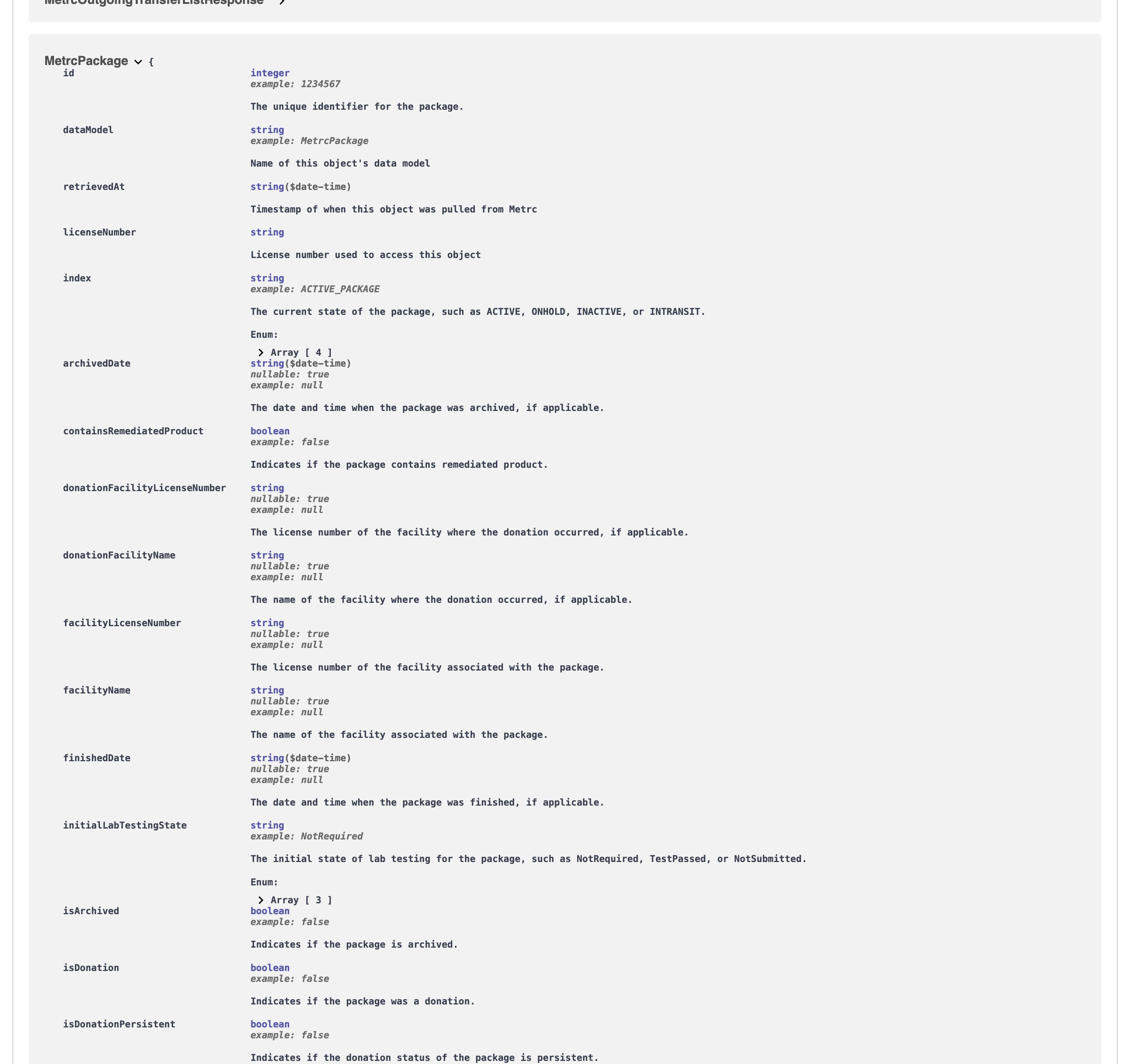
T3 API MetrcPackage schema
So if you wanted to specify the columns to show License Number, Facility Name, Label, and Production Batch Number, you would add the following to your Sync Link:
https://api.trackandtrace.tools/v2/packages/active/report?licenseNumber=...&columns=licenseNumber,facilityName,label,productionBatchNumber
These will be returned as the column headers.
In CSV output the headers are title-cased from the field names, so productionBatchNumber appears as Production Batch Number.
If you misspell a field name, the report returns an error listing every valid field for that data model — see Invalid columns.
columns was previously called fieldnames
Both spellings work and mean exactly the same thing, so existing Sync Links and saved reports keep running untouched — there is nothing you need to change. fieldnames is deprecated and columns is the name documented from here on, so prefer it for anything new. Sending both in one request returns a 400, since there is no way to tell which column list you meant.
MetrcPackage has a special scenario, where item is nested inside it.
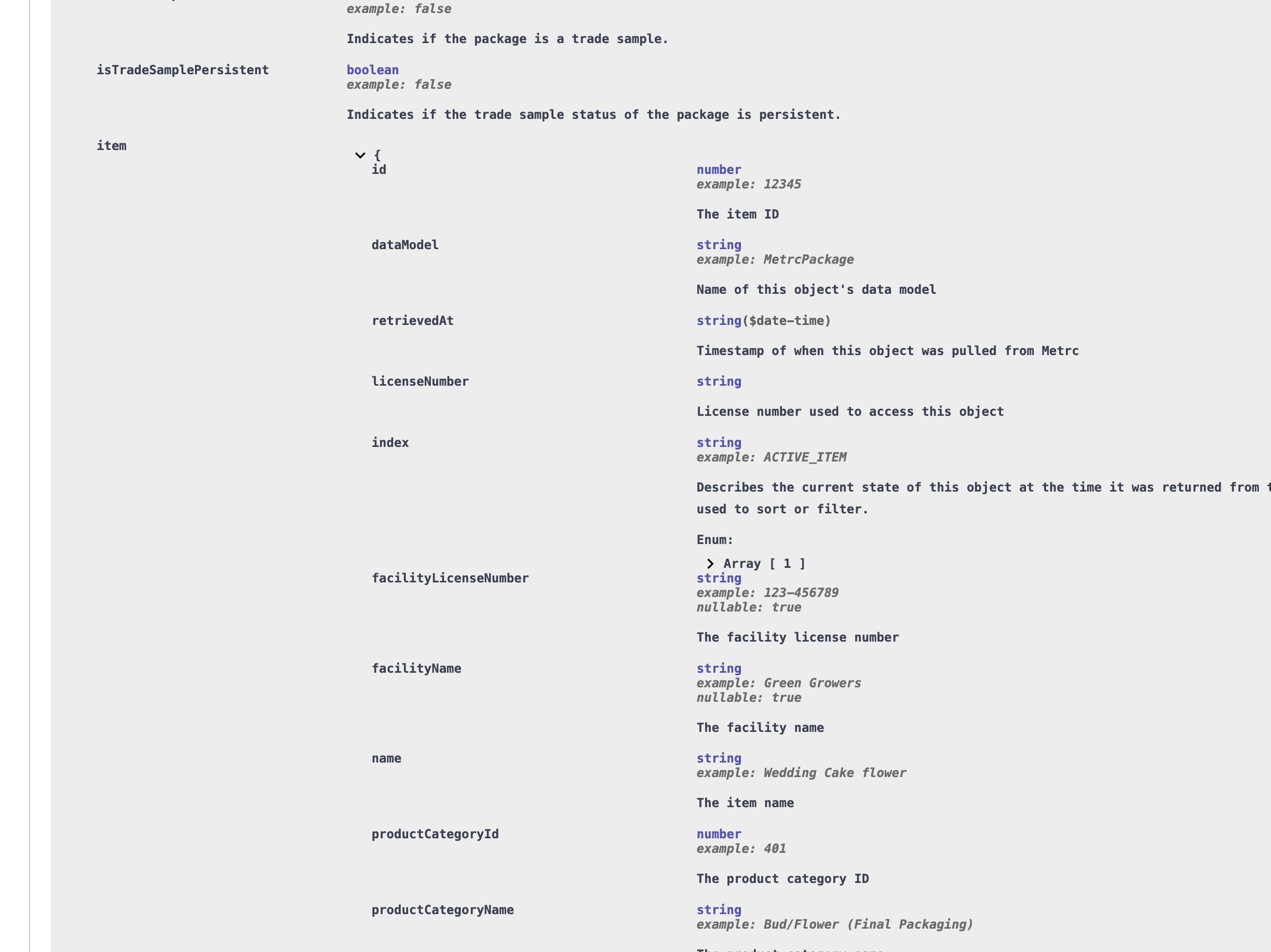
T3 API nested item schema
If you want to show an item column, you add item.* in front of it. For example, the Item Category, you would use item.productCategoryName.
Example URL:
https://api.trackandtrace.tools/v2/packages/active/report?licenseNumber=...&columns=licenseNumber,facilityName,label,productionBatchNumber,item.productCategoryName
Four nested item fields are available this way: item.name, item.strainName, item.productCategoryName and item.unitThcContent. Packages are the only Metrc object with nesting like this, and item on its own is not a valid column.
The transfer manifest reports are the other exception: they join several objects, so every column carries the prefix of the object it came from — transfer., package., transporter., and on outgoing manifests also delivery. and transporterDetails..
Choosing a Response Format
Add &contentType= with one of four values:
contentType | You get | Includes | Use it for |
|---|---|---|---|
json | Nested JSON envelope | Unlimited | Scripts and integrations |
csv | .csv file download | One | Spreadsheets, scheduled pulls, anything automated |
xlsx | .xlsx file download | One | Opening in Excel without an import step |
googleSheets | A redirect to a new Google Sheet | One | One-off exports you intend to share or edit |
json and csv can also be set with the Content-Type header. xlsx and googleSheets are query-parameter only.
csv, xlsx and googleSheets contain exactly the same thing — same rows, same title-cased headers, same metadata preamble. Only the container differs. All three of json, csv and xlsx download as file attachments — see Downloading vs. Rendering.
A JSON report returns a single object describing both the request and the results:
{
  "generatedAt": "2024-01-01T00:00:00+00:00",
  "filters": ["quantity__gte:100"],
  "filterLogic": "and",
  "sort": "label:asc",
  "licenseNumbers": ["LIC-00001"],
  "data": [ ... ]
}
The data array holds the records. The other fields echo back the request that produced them, which is useful when you are storing report output and need to know later how it was generated.
Downloading vs. Rendering
Reports download by default. Open a report URL in a browser and you get a saved file rather than a wall of text — for json, csv and xlsx alike.
If you are writing a script, this changes nothing. Content-Disposition is a hint to browsers; curl, Python's requests, JavaScript's fetch and Google Sheets IMPORTDATA all ignore it and hand you the same bytes they always did.
Add &contentDisposition=inline when you do want a browser to display the response instead — reading a JSON report without saving it, or eyeballing a CSV in a tab:
# Saves a file
https://api.trackandtrace.tools/v2/packages/active/report?licenseNumber=LIC-00001

# Displays in the browser
https://api.trackandtrace.tools/v2/packages/active/report?licenseNumber=LIC-00001&contentDisposition=inline
contentType=googleSheets redirects to a spreadsheet rather than returning a file, so it ignores this parameter.
The filename describes the report, the license, the date it was generated, and a short hash of the request:
A report covering several licenses names the first and counts the rest — LIC-00001-plus-3. The hash on the end is what stops two variants of the same report — different columns, a different filter — from overwriting each other in your downloads folder. A scan sheet names itself instead.
Emailing a Report
Add &delivery=email&[email protected] and the report is sent to that address instead of returned. The two parameters are required together — one without the other is a 400. (The exception is contentType=googleSheets, where email on its own names the account to share the sheet with; see below.)
You get back a receipt straight away, before the report has been built:
{
  "status": "processing",
  "recipient": "[email protected]",
  "contentType": "xlsx"
}
This is the only way to get a report that takes longer than 240 seconds. A normal request gives up at that point and returns a 504, and retrying will not help — the report is simply not obtainable over HTTP. With delivery=email nothing is waiting on the result, so it is built and delivered however long it takes.
json, csv and xlsx arrive as a file attached to an email. googleSheets creates a sheet, shares it with that address, and emails you the link — Google sends its own share notification too, so you get two messages carrying the same link.
Errors arrive by email too. Once you have the receipt there is no response left to fail into, so anything that goes wrong afterwards — Report Request Too Large, a Metrc permission problem, a report too big to attach — is emailed to the recipient with the same explanation an ordinary request would have returned. Your parameters are still checked before the receipt is sent, so a bad columns, rowLimit, include or email still comes back as an immediate 400.
A few things to know:
- One recipient per request; a comma-separated list is rejected.
- Email delivery has its own rate limit, tighter than the report limits.
- There is nothing to poll. The report arrives, or an explanation does.
- On a Spreadsheet Sync link, every refresh sends an email. Sync links are polled on a schedule, so
delivery=emailon one produces a message per refresh rather than a one-off export.
The googleSheets Format
contentType=googleSheets writes the report into a new Google Sheet. It is the one format whose response is not the report — it is a way to reach the document.
Without delivery=email, you get a redirect. The sheet is built during the request, and the response is a 302 pointing at it:
curl -i "https://api.trackandtrace.tools/v2/packages/active/report?secretKey=YOUR_SECRET_KEY&licenseNumber=EX-00001&contentType=googleSheets"
HTTP/1.1 302 Found
Location: https://docs.google.com/spreadsheets/d/1AbCdEf.../edit
Content-Type: application/json

{"sheetUrl": "https://docs.google.com/spreadsheets/d/1AbCdEf.../edit", "sheetId": "1AbCdEf..."}
Paste that URL into a browser and you land on the finished sheet. The link is repeated in the body so that a client which does not follow redirects can still read it:
# Follow the redirect and print where you ended up
curl -sL -o /dev/null -w '%{url_effective}\n' \
  "https://api.trackandtrace.tools/v2/packages/active/report?secretKey=YOUR_SECRET_KEY&licenseNumber=EX-00001&contentType=googleSheets"
import requests

response = requests.get(
    "https://api.trackandtrace.tools/v2/packages/active/report",
    params={
        "licenseNumber": "EX-00001",
        "contentType": "googleSheets",
    },
    headers={"Authorization": f"Bearer {access_token}"},
    allow_redirects=False,
)

print(response.json()["sheetUrl"])
By default, anyone with the link can open and edit the sheet. There is no Google account to grant access to on a plain request, so the URL is the credential. Treat it the way you would treat the report itself — it holds your Metrc data.
To restrict it, add &sheetVisibility=private together with an email:
https://api.trackandtrace.tools/v2/packages/active/report?secretKey=YOUR_SECRET_KEY&licenseNumber=EX-00001&contentType=googleSheets&sheetVisibility=private&[email protected]
Now the sheet is shared only with that Google account. You still get the 302, but you will only land on the sheet if your browser is signed into that account — anyone else sees Google's request-access page. sheetVisibility=private without an email is a 400, because the sheet would open for nobody.
sheetVisibility works the same way with delivery=email, and defaults to public there too. Add &sheetVisibility=private if you want the emailed sheet restricted to its recipient.
Three more things to know:
- A named
emailmust be a Google account. The sheet is granted to that address directly, and Google Drive may refuse an address it does not recognize. If it does, no sheet is left behind and you are told why. UsecontentType=xlsxto receive a file instead. - Use
delivery=emailfor large reports. Without it, the sheet is created and filled inside your request, on top of generating the report — a report near the row cap can run out of time partway through. Withdelivery=emailnothing is waiting, so there is no ceiling. - Every request creates a new sheet, and sheets are never deleted. Use
csvfor anything recurring — a job that pullsgoogleSheetsevery five minutes leaves behind an abandoned sheet every five minutes.
The Metadata Preamble
By default every tabular report — csv, xlsx and googleSheets alike — starts with eight rows describing the request, before the column headers:
Report:,ACTIVE_PACKAGES_REPORT
Data model:,MetrcPackage
Generated at:,2024-01-01T00:00:00+00:00
License numbers:,LIC-00001
Filters:,quantity__gte:100
Filter logic:,and
Sort:,label:asc

Label,Location Name,Item Name,Quantity,Unit Of Measure Abbreviation
1A4400000000000000001234,Room A,Blue Dream,10,ea
So the column headers land on row 9, and your first data row is on row 10. The example above is CSV, but xlsx and googleSheets put the same values in the same cells — labels in column A, values in column B.
A multi-license report lists them comma-joined in that one cell — License numbers:,LIC-00001, LIC-00002 — so the preamble stays eight rows and the header stays on row 9 however many licenses you request.
Add &prependCsvMetadata=false to remove the preamble entirely. Headers then start on row 1 and data on row 2. The parameter keeps its Csv name for backwards compatibility, but it governs all three tabular formats.
Which should you use?
- Keep the preamble when a person will open the file and needs to know which license, filters and sort produced it.
- Turn it off when the output feeds a formula or query that expects headers first. This is usually what you want with
IMPORTDATAin Google Sheets or Power Query in Excel, since otherwise every formula referencing the sheet has to be offset by eight rows.
Super Reports
A super report is a report that can also load related Metrc data for each record — lab results, history, source harvests, transactions — using the same include parameter as Supercollections.
Introducing T3 Super Reports
Every super report path is its report path with /super inserted before /report:
/v2/packages/active/report→/v2/packages/active/super/report
Add includes by repeating the parameter:
https://api.trackandtrace.tools/v2/packages/active/super/report?licenseNumber=...&include=labResults&include=sourceHarvests
The include options for each data type are listed on the Supercollections page — a super report accepts exactly the same values as the matching supercollection.
When to use a super report
Use a report when the columns you need are all on the object itself. It is faster, has a higher rate limit, and returns ten times as many rows.
Use a super report when you need related data that only exists on another Metrc endpoint — the classic case being lab results for each package.
The trade-offs:
| Report | Super report | |
|---|---|---|
| Row cap | 50,000 | 5,000 |
| Rate limit | 600/minute | 180/minute |
include support | No | Yes |
| Speed | Faster | Slower |
The super report row cap is lower because each include costs one Metrc request per record. See Limits.
One include in tabular formats, many in JSON
With contentType=json you can request as many includes as the request budget allows. With csv, xlsx or googleSheets you can request at most one.
This is a property of the format, not a restriction we chose. All three are a flat grid: rows and columns, nothing else. One include folds into that grid by widening each row. A second include adds a dimension the grid cannot represent — there is no way to put two independent lists of child records on a single row without a cross join that multiplies your row count and misstates the data.
If you need several includes in a spreadsheet, run one super report per include and join them in the sheet.
Saving a report
Once you have a report URL configured the way you want it, you can save it under a name so you can find it again — and so a future release can run it on a schedule for you.
A saved report is a definition, not a shortcut. Saving one does not run it: you save the URL, and later you retrieve it and request it exactly as you would have anyway.
Saving one
POST the URL you already have. Both a full URL and a bare path work:
# /// script
# requires-python = ">=3.8"
# dependencies = [
#     "httpx",
# ]
# ///
import httpx

SECRET_KEY = "YOUR_SECRET_KEY"

response = httpx.post(
    "https://api.trackandtrace.tools/v2/saved-reports",
    headers={"X-T3-API-Key": SECRET_KEY},
    json={
        "name": "Daily veg plant count",
        "description": "Feeds the cultivation team's morning dashboard",
        "reportUrl": (
            "/v2/plants/vegetative/report"
            "?licenseNumber=EX-00001"
            "&contentType=csv"
            "&columns=label,strainName,plantedDate"
            "&prependCsvMetadata=false"
        ),
    },
)

saved = response.json()["data"]
print(saved["publicId"])
print(saved["reportUrl"])
Your secret key is never stored. If you paste a URL that still has &secretKey=... on the end — which is what you get by copying it out of your browser — it is stripped before the report is saved. A saved report is not a credential.
The URL is checked when you save it. An unknown filter field, a bad contentType, a missing licenseNumber — all of these fail here, while you are looking at them, rather than the next time you go to use the report.
Using one
Retrieve it and request the reportUrl it gives you back.
Two things are yours to add. reportUrl is a path, not a full address, and it carries no credential:
- Prepend the API origin —
https://api.trackandtrace.tools. The origin is left off on purpose, so one saved report is correct whatever host you read it from. - Supply your secret key — as
?secretKey=or anX-T3-API-Keyheader. It was stripped when you saved, and is never stored.
saved = httpx.get(
    f"https://api.trackandtrace.tools/v2/saved-reports/{public_id}",
    headers={"X-T3-API-Key": SECRET_KEY},
).json()["data"]

report = httpx.get(
    f"https://api.trackandtrace.tools{saved['reportUrl']}",
    params={"secretKey": SECRET_KEY},
)
The reportUrl you get back is not byte-identical to what you sent. The host is dropped, your secret key is removed, licenses are tidied up, and the query string is re-encoded. It is the same request, spelled canonically.
To paste one into a browser, an IMPORTDATA() formula or Power Query, join the three parts yourself:
One useful consequence: the URL is rebuilt from the endpoint each time you read it, so a report saved against a path that later gets corrected comes back pointing at the current path.
Managing them
| Method | Path | What it does |
|---|---|---|
GET | /v2/saved-reports | List your saved reports. Filter with ?licenseNumber= or ?t3EndpointId= |
POST | /v2/saved-reports | Save a report URL |
GET | /v2/saved-reports/{publicId} | Retrieve one |
PATCH | /v2/saved-reports/{publicId} | Change the name, description or URL |
DELETE | /v2/saved-reports/{publicId} | Delete it permanently |
Saved reports belong to your Metrc account, not to a single secret key. Anyone signing in as the same username on the same state's Metrc sees the same list, and rotating or revoking a secret key does not affect them.
Examples
Every example below uses your secret key for authentication, which is the simplest way to call a report endpoint from a script. The scripts are written for uv — save one as example.py and run it with uv run example.py.
Each example also shows the plain URL, which you can paste straight into a browser, an IMPORTDATA() formula, or Power Query.
Packages from each harvest
The problem: you want to know which packages came out of each harvest. Metrc keeps harvests and packages in separate places, so ordinarily you export a harvest report, export a package report, and try to match them up by hand.
A super report does the join for you. /v2/harvests/active/super/report returns your harvests, and &include=packages attaches the packages created from each one:
https://api.trackandtrace.tools/v2/harvests/active/super/report?secretKey=YOUR_SECRET_KEY&licenseNumber=EX-00001&include=packages&contentType=json
#!/usr/bin/env python3
# /// script
# requires-python = ">=3.8"
# dependencies = [
#     "httpx",
# ]
# ///


import httpx

SECRET_KEY = "1234-1234-1234-1234-1234-1234"
LICENSE_NUMBER = "EX-00001"


def main():
    response = httpx.get(
        "https://api.trackandtrace.tools/v2/harvests/active/super/report",
        params={
            "secretKey": SECRET_KEY,
            "licenseNumber": LICENSE_NUMBER,
            "include": "packages",
            "contentType": "json",
        },
        # httpx defaults to 5s; a report may take up to 60.
        timeout=90.0,
    )
    response.raise_for_status()
    report = response.json()

    for harvest in report["data"]:
        packages = harvest.get("packages", [])
        print(f"{harvest['name']}: {len(packages)} packages")

        for package in packages:
            print(f"    {package['packageLabel']}")


if __name__ == "__main__":
    main()
Each harvest in data carries all the usual harvest fields (name, harvestStartDate, plantCount, currentWeight, totalWetWeight, and so on) plus a packages array holding the packages Metrc recorded against it.
In a spreadsheet. Switch to &contentType=csv and the packages are flattened into the rows — you get one row per package, with the harvest columns repeated. That is exactly the shape you want for a pivot table summarizing yield by harvest.
Swap active for inactive or onhold to run the same report against harvests in those states. include=plants attaches the plants that went into each harvest instead, and include=history attaches the harvest's Metrc history.
Incoming transfer manifests
The problem: you want a line-item list of everything arriving at your facility — not one row per transfer, but one row per package on each transfer, with the manifest number and transporter attached.
/v2/transfers/incoming/manifest/report does this in a single request. Unlike a super report, you do not ask for the packages with include — this report always loads the packages and transporters for every transfer and cross-joins them:
https://api.trackandtrace.tools/v2/transfers/incoming/manifest/report?secretKey=YOUR_SECRET_KEY&licenseNumber=EX-00001&contentType=csv
#!/usr/bin/env python3
# /// script
# requires-python = ">=3.8"
# dependencies = [
#     "httpx",
# ]
# ///


import httpx

SECRET_KEY = "1234-1234-1234-1234-1234-1234"
LICENSE_NUMBER = "EX-00001"


def main():
    response = httpx.get(
        "https://api.trackandtrace.tools/v2/transfers/incoming/manifest/report",
        params={
            "secretKey": SECRET_KEY,
            "licenseNumber": LICENSE_NUMBER,
            "contentType": "json",
            # These reports get expensive quickly -- see the note below.
            "rowLimit": 500,
        },
        # httpx defaults to 5s; a report may take up to 60.
        timeout=90.0,
    )
    response.raise_for_status()
    report = response.json()

    for row in report["data"]:
        print(
            row["transfer"]["manifestNumber"],
            row["package"]["packageLabel"],
            row["package"]["productName"],
            row["package"]["shippedQuantity"],
            row["package"]["shippedUnitOfMeasureAbbreviation"],
        )


if __name__ == "__main__":
    main()
Because each row is stitched together from three different Metrc objects, the columns are prefixed by where they came from. The default columns are:
| Column | Comes from |
|---|---|
transfer.manifestNumber | The transfer |
transfer.recipientFacilityLicenseNumber | The transfer |
transfer.recipientFacilityName | The transfer |
transporter.transporterFacilityName | The transporter |
transporter.transporterFacilityLicenseNumber | The transporter |
package.packageLabel | The package |
package.productName | The package |
package.shippedQuantity | The package |
package.shippedUnitOfMeasureAbbreviation | The package |
Two things surprise people about these reports:
rowLimitcounts transfers, not rows. It is applied before the cross join, so&rowLimit=100can return several hundred rows.- They are expensive despite being plain reports. Loading packages and transporters for every transfer costs a Metrc request per transfer, so these run out of the Metrc request budget at roughly 5,000 transfers — well before the 50,000 row cap. Filter to a date range or add
&rowLimit=5000.
/v2/transfers/outgoing/manifest/report is the same report for outgoing transfers, and adds driver and vehicle columns (transporterDetails.driverName, transporterDetails.vehicleLicensePlateNumber, and so on). /v2/transfers/rejected/manifest/report is the rejected equivalent, with identical columns — Metrc returns rejected transfers in the same shape as outgoing ones.
Reconciling a shipment as it is unloaded
The problem: a truck has arrived and someone has to check that every package on the manifest is physically present — and that nothing turned up that should not have.
Add &transform=scanSheet to any of the four manifest reports and you get a spreadsheet built for exactly that: one row per package, a column holding the expected tag, and an empty column beside it that colours itself as a worker scans.
https://api.trackandtrace.tools/v2/transfers/incoming/manifest/report?secretKey=YOUR_SECRET_KEY&licenseNumber=EX-00001&transform=scanSheet&contentType=googleSheets&filter=manifestNumber__eq:0000123456
Because a scan sheet loads the same data as the report it is built from, the two share a cached result — running the report and then the scan sheet costs one trip to Metrc, not two.
See Scan Sheets for the columns, the colour meanings, and the manifest-number filter syntax.
Lab results for every active package
The problem: you want a COA summary across your inventory — every active package with its potency results — without opening each package in Metrc one at a time.
This is the most commonly used super report. &include=labResults attaches the lab results to each package:
https://api.trackandtrace.tools/v2/packages/active/super/report?secretKey=YOUR_SECRET_KEY&licenseNumber=EX-00001&include=labResults&contentType=json
#!/usr/bin/env python3
# /// script
# requires-python = ">=3.8"
# dependencies = [
#     "httpx",
# ]
# ///


import httpx

SECRET_KEY = "1234-1234-1234-1234-1234-1234"
LICENSE_NUMBER = "EX-00001"


def main():
    response = httpx.get(
        "https://api.trackandtrace.tools/v2/packages/active/super/report",
        params={
            "secretKey": SECRET_KEY,
            "licenseNumber": LICENSE_NUMBER,
            "include": "labResults",
            "contentType": "json",
            # Super reports cap at 5,000 records -- narrow to what you need.
            "filter": "item.productCategoryName__eq:Buds",
        },
        # httpx defaults to 5s; a report may take up to 60.
        timeout=90.0,
    )
    response.raise_for_status()
    report = response.json()

    for package in report["data"]:
        extracted = package["metadata"]["extractedLabResults"]
        print(package["label"], package["item"]["name"], extracted)


if __name__ == "__main__":
    main()
Each package carries its standard fields plus a labResults array of raw Metrc lab result data, and a metadata object with the results already parsed into a usable shape — extractedLabResults, indexedLabResults, testSamplePackageLabels and labResultPdfs. The metadata fields are usually what you want; the raw labResults array is there when you need something the parsing didn't surface.
Watch the row cap. A super report returns at most 5,000 records, a tenth of a plain report, because each include costs one Metrc request per package. Filtering to a product category, a location, or a date range is usually how you get under it. See Report Request Too Large if you hit the limit.
Other useful package includes are sourceHarvests (which harvest the package came from), history (the package's full Metrc history), and labResultBatches (results grouped by test batch). All the options are listed on the Supercollections page, and published as an enum on each endpoint in the API documentation.
Narrowing a report with filters, columns and a row limit
Reports return everything by default, which is rarely what you want while you are still building the request. These three parameters work together to cut a report down:
filternarrows which records come back. Repeat it for multiple conditions.columnspicks the columns, in the order you list them.rowLimitcaps how many records are loaded.
Say you want the label and quantity of every active package in the Bulk Storage room holding more than 100 units:
https://api.trackandtrace.tools/v2/packages/active/report?secretKey=YOUR_SECRET_KEY&licenseNumber=EX-00001&filter=locationName__eq:Bulk Storage&filter=quantity__gte:100&filterLogic=and&columns=label,item.name,quantity,unitOfMeasureAbbreviation&sort=quantity:desc&rowLimit=10
#!/usr/bin/env python3
# /// script
# requires-python = ">=3.8"
# dependencies = [
#     "httpx",
# ]
# ///


import httpx

SECRET_KEY = "1234-1234-1234-1234-1234-1234"
LICENSE_NUMBER = "EX-00001"


def main():
    response = httpx.get(
        "https://api.trackandtrace.tools/v2/packages/active/report",
        params={
            "secretKey": SECRET_KEY,
            "licenseNumber": LICENSE_NUMBER,
            "filter": [
                "locationName__eq:Bulk Storage",
                "quantity__gte:100",
            ],
            "filterLogic": "and",
            "columns": "label,item.name,quantity,unitOfMeasureAbbreviation",
            "sort": "quantity:desc",
            # Start small while you get the filters right, then remove this.
            "rowLimit": 10,
            "contentType": "json",
        },
        # httpx defaults to 5s; a report may take up to 60.
        timeout=90.0,
    )
    response.raise_for_status()
    report = response.json()

    print(f"{len(report['data'])} packages")

    for package in report["data"]:
        print(package["label"], package["quantity"])


if __name__ == "__main__":
    main()
Build the request with a small rowLimit, then remove it. rowLimit=10 returns in a second or two and produces the exact same columns and formatting the full report will — enough to confirm your filter matches what you expect and that your columns are spelled correctly, without pulling your whole dataset on every attempt.
Note that sort matters once rowLimit is in play: only the first n records are loaded, so sort=quantity:desc&rowLimit=10 gives you the ten largest packages, not ten arbitrary ones.
The column names available for a given report come from its dataModel, which is listed in the metadata preamble and documented under Schemas in the API docs.
Emailing a large report as an Excel workbook
The problem: your license is big enough that the report times out. A normal request waits 240 seconds and then returns Report Generation Timeout, and retrying does not help.
&delivery=email solves this, because nothing is waiting on the result — the report is built however long it takes and then sent to you. Pair it with &contentType=xlsx to get an Excel workbook attached to the email:
https://api.trackandtrace.tools/v2/packages/active/report?secretKey=YOUR_SECRET_KEY&licenseNumber=EX-00001&contentType=xlsx&delivery=email&[email protected]
#!/usr/bin/env python3
# /// script
# requires-python = ">=3.8"
# dependencies = [
#     "httpx",
# ]
# ///


import httpx

SECRET_KEY = "1234-1234-1234-1234-1234-1234"
LICENSE_NUMBER = "EX-00001"


def main():
    response = httpx.get(
        "https://api.trackandtrace.tools/v2/packages/active/report",
        params={
            "secretKey": SECRET_KEY,
            "licenseNumber": LICENSE_NUMBER,
            "contentType": "xlsx",
            "delivery": "email",
            "email": "[email protected]",
        },
        # httpx defaults to 5s; a report may take up to 60.
        timeout=90.0,
    )
    response.raise_for_status()

    # You get a receipt immediately -- the report itself arrives by email.
    print(response.json())


if __name__ == "__main__":
    main()
The response comes back right away, before the report exists:
{
  "status": "processing",
  "recipient": "[email protected]",
  "contentType": "xlsx"
}
There is nothing to poll after that. The workbook arrives by email, or — if something goes wrong during generation — an email explaining what went wrong arrives instead, with the same detail an ordinary request would have returned.
Your parameters are still checked before the receipt is sent, so a misspelled columns or a malformed email still comes back as an immediate 400.
Do not put delivery=email on a Spreadsheet Sync link. Sync links are refreshed on a schedule, so you would get an email on every refresh rather than a one-off export.
Delivering a report to Google Sheets
&contentType=googleSheets builds a Google Sheet. Add &delivery=email and the link is emailed to the account you name instead of returned — useful for a report too large to finish inside a request. (Without delivery=email you get a 302 straight to the sheet; see The googleSheets Format.)
https://api.trackandtrace.tools/v2/packages/active/report?secretKey=YOUR_SECRET_KEY&licenseNumber=EX-00001&contentType=googleSheets&delivery=email&[email protected]
#!/usr/bin/env python3
# /// script
# requires-python = ">=3.8"
# dependencies = [
#     "httpx",
# ]
# ///


import httpx

SECRET_KEY = "1234-1234-1234-1234-1234-1234"
LICENSE_NUMBER = "EX-00001"

# Must be a Google account -- the sheet is shared with it directly.
GOOGLE_ACCOUNT = "[email protected]"


def main():
    response = httpx.get(
        "https://api.trackandtrace.tools/v2/packages/active/report",
        params={
            "secretKey": SECRET_KEY,
            "licenseNumber": LICENSE_NUMBER,
            "contentType": "googleSheets",
            "delivery": "email",
            "email": GOOGLE_ACCOUNT,
            # Without this, anyone with the sheet's link can open and edit it.
            "sheetVisibility": "private",
        },
        # httpx defaults to 5s; a report may take up to 60.
        timeout=90.0,
    )
    response.raise_for_status()

    # The sheet link is emailed once the sheet has been created and shared.
    print(response.json())


if __name__ == "__main__":
    main()
You get the same processing receipt as any other emailed report — it carries no sheet URL, because the sheet does not exist yet. Once it does, you receive the link twice: once from T3 and once from Google's own share notification.
Three things to know:
- The recipient must be a Google account. The sheet is granted to that address directly, and Google Drive may refuse an address it does not recognize. If it does, no sheet is left behind and you get an email explaining why. Use
contentType=xlsxto receive a file instead. - Sheets are public by default, here too. Omit
sheetVisibilityand anyone with the link can open and edit the sheet, not just the recipient. PasssheetVisibility=privateto restrict it, as the example above does. - Every request creates a new sheet, and sheets are never deleted. Use
csvorxlsxfor anything recurring — a job that pullsgoogleSheetsevery five minutes leaves behind an abandoned sheet every five minutes.
This is not the same as the Chrome extension's Google Sheets export, which signs into your Google account and creates the sheet there. See Exports for that.
Limits
| Limit | Report | Super report |
|---|---|---|
| Rows returned | 50,000 | 5,000 |
| Rate limit | 600/minute | 180/minute |
| Metrc request budget | 10,000 | 10,000 |
include values (CSV) | n/a | 1 |
include values (JSON) | n/a | as many as the budget allows |
| Cached for | 5 minutes | 5 minutes |
| Request waits up to | 240 seconds | 240 seconds |
The Metrc request budget is the one worth understanding. Generating a report costs T3 a number of requests to Metrc: some for paging through your data, plus — on a super report — one request per record for every include you asked for. If the estimate exceeds 10,000, the request is rejected before any data is loaded. See Report Request Too Large.
In practice this means a super report with one include tops out around 5,000 records, which is exactly where the row cap sits. Two includes will bind before the row cap does.
Caching and Timing
Caching. Identical report requests are served from a cache for 5 minutes. "Identical" means the same licenses, the same path, and the same query parameters. Because license order determines row order, licenseNumber=A&licenseNumber=B and licenseNumber=B&licenseNumber=A are different reports and cache separately.
This matters for Spreadsheet Sync: IMPORTDATA refreshes roughly once an hour, which is well outside the cache window, so each refresh gets fresh data. But if you refresh manually several times in a row, or have several sheets pulling the same Sync Link, you will get the same document back until the five minutes elapse.
Timing. Reports usually finish in 15–20 seconds. A request waits up to 240 seconds before giving up.
If the wait elapses you get a 504 response — the report is still being generated in the background, so it has not failed. Simply request it again; by then it has usually finished and comes straight from the cache.
If a report exceeds 240 seconds every time, retrying will never help — it cannot be delivered over HTTP at all. Use delivery=email, which returns a receipt immediately and sends the report when it is ready, however long that takes.
Troubleshooting
Report Request Too Large
This one title covers two different limits, and the message tells you which you hit.
Too many rows:
Your collection is bigger than the report's row cap — 50,000 for a report, 5,000 for a super report. Reports reject an oversized collection rather than silently returning part of it, because a truncated spreadsheet looks exactly like a complete one.
Too many Metrc requests:
Estimated Metrc requests (25008) exceeds budget (10000). Record count: 25000, includes: 1.
Refine filters to reduce record count, reduce includes, or set a lower rowLimit.
Your report would cost more Metrc requests than the budget allows. The message tells you exactly what drove it up: the record count and the number of includes. Each include costs one request per record, so 25,000 packages with one include is 25,000 requests on its own.
Any of these will bring either version back under the limit:
- Filter harder.
&filter=locationName__eq:Bulk Storageon a report that currently returns everything is usually the biggest win, and gives you a more useful report besides. - Add a row limit.
&rowLimit=5000caps the record count directly. Both limits are checked against the limited count, not the full collection, so this works on either version of the error. - Drop an include. If you asked for two, each one you remove cuts the cost by one request per record.
- Use the plain report. If you did not actually need the related data, the report form usually has no per-record cost and a much higher row cap.
The transfer manifest reports are the exception. /v2/transfers/{incoming,outgoing,rejected,hub}/manifest/report load packages and transporters for every transfer automatically — you do not ask for them with include, and you cannot turn them off. That gives them a per-record cost even though they are plain reports, so they run out of budget well before the 50,000 row cap: roughly 5,000 transfers for incoming, 2,500 for outgoing and rejected (their packages are keyed on delivery, which doubles the cost), and 10,000 for hub (one request per transfer, since the layovers endpoint returns the transporter already attached). Add &rowLimit=5000 or filter to a date range.
Note that a filter on these reports selects transfers. Every package and transporter leg on a matched transfer is returned in full, so filtering does not reduce the per-transfer cost — it reduces how many transfers you pay it for.
Too Many Includes for 2D Format
2D output formats (CSV) support a maximum of 1 include parameter. You requested 2 includes: labResults, history.
Use JSON for multiple includes, or specify only one include.
Switch to &contentType=json, or request one include and run a second report for the other. See One include in tabular formats, many in JSON.
Invalid Include
Unrecognized include `labresults`. This endpoint accepts: history, sourceHarvests,
labResultBatches, labResults.
The include value is not one this report accepts. Include names are case-sensitive, and each report accepts a different set — the error lists the ones that work here.
Two common causes:
- A comma-joined list.
&include=labResults,historyis one value, not two. Repeat the parameter instead:&include=labResults&include=history. - An include from a different report.
plantsworks on a harvest super report but not on a package one; each report attaches only what its own records relate to.
Every endpoint's valid includes are published as an enum in the API documentation.
Invalid columns
The following columns are not valid for MetrcPackage: labResults.
Valid columns: id, label, packageType, quantity, ...
One of the names in your &columns= list is not a column on this report's data model. The error lists every valid name, so the fix is usually visible in the response itself.
Two common causes:
- A related object rather than a column.
labResultsis data you attach withincludeon a super report, not a column you select withcolumns. - Nested syntax where it does not apply. Only packages support
item.*, and only for four fields. See Specifying Field Names.
Report Generation Timeout
A 504 after 240 seconds. The report is still being generated — request the same URL again and it will usually be ready and cached. If it happens repeatedly, the report is probably close to the limits; narrow it with filters or a rowLimit, or switch to delivery=email, which does not wait and so cannot time out.
Spreadsheet Sync
Spreadsheet Sync uses T3 API Reports to import entire Metrc datasets into a spreadsheet with a single cell formula. The spreadsheet will stay up-to-date with Metrc (updating at least once per hour).
Demo of Spreadsheet Sync
How does it work?
T3 API Reports capture snapshots of your Metrc data all in a single request. Spreadsheet Sync allows you to form a single Sync Link that loads your report data. This Sync Link can then be passed to either Power Query in Microsoft Excel or the IMPORTDATA() formula in Google Sheets.
How to get started with Spreadsheet Sync?
1. Generate your secret key
- Generate your secret key here.
- Store this secret key in a secure place, there is no way to access it again.
- Do not share this secret key! It allows access to your Metrc data
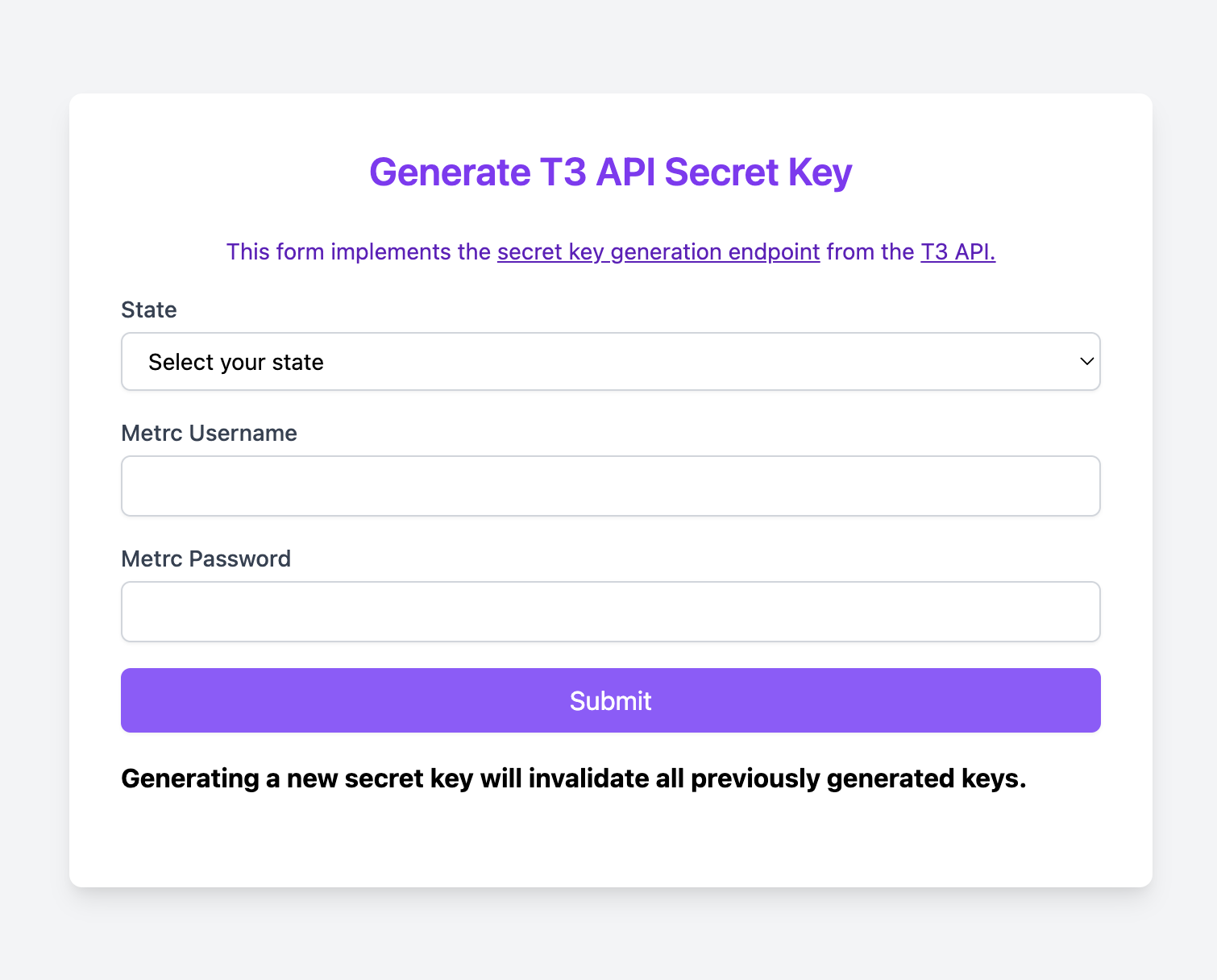
Secret key generation interface
2. Create your Spreadsheet Sync Link
Use this tool to help you build your sync link
All the information needed to generate the report is included in the Sync Link. At minimum, you will need:
- The path of the report you wish to generate (see Available Report Endpoints, or the API docs)
- The license number for the data that should appear in the report
- Your secret key
For example, let's say you want to create an Active Packages report for the EX-00001 license.
- Report path (taken from the API docs):
/v2/packages/active/report - License number:
EX-00001 - Secret key:
1234-1234-1234-1234-1234-1234
Your Sync Link would be: https://api.trackandtrace.tools/v2/packages/active/report?secretKey=1234-1234-1234-1234-1234-1234&licenseNumber=EX-00001&contentType=csv
Note: contentType=csv is required
Note: Do not share this Sync Link! Anyone who has it can load all your Metrc Data
3. Import Data into your Spreadsheet
For Google Sheets:
Pass your Sync Link to the IMPORTDATA() function. Every hour, this function will load the report data using your Sync Link and insert it into the sheet.
In your spreadsheet, in Cell A1, you would paste =IMPORTDATA("https://api.trackandtrace.tools/v2/packages/active/report?secretKey=1234-1234-1234-1234-1234-1234&licenseNumber=EX-00001&contentType=csv")
Tip: add &prependCsvMetadata=false to your Sync Link so the column headers land in row 1 instead of row 9. See The Metadata Preamble.
Note: IMPORTDATA is a Google Sheets function and is not available in Excel. Excel users should use Power Query (see below).
For Microsoft Excel:
Excel requires the use of Power Query to import data from the web. Follow the instructions here, using your sync link as the data source URL.
4. Allow Spreadsheet to Load Data
Loading your data usually takes 15-20 seconds.
- The
IMPORTDATAfunction automatically refreshes the information about once per hour. - Power Query will refresh the data based on how you configure your data source.
- A request waits up to 240 seconds. If your report is large enough to hit that, see Caching and Timing.
Example output (redacted):
Example output
Demo of Advanced Spreadsheet Sync Usage
Spreadsheet Sync allows for advanced filtering options:
Demo of Advanced Spreadsheet Sync
Next Steps
- Get started with Spreadsheet Sync and generate your secret key here
- Need related data like lab results or history in your export? Use a super report, or read about Supercollections if you would rather page through the data in code.
- Drive report queries from code with API scripts.
- Browse the full set of available report paths in the OpenAPI spec (look for paths ending in
/report). - If you're not subscribed to T3+, start your 30-day free trial here