Spreadsheet Sync
Spreadsheet Sync uses T3 API Reports to import entire Metrc datasets into a spreadsheet with a single cell formula. The spreadsheet will stay up-to-date with Metrc (updating at least once per hour).
Demo of Spreadsheet Sync
How does it work?
T3 API Reports capture snapshots of your Metrc data all in a single request. Spreadsheet Sync allows you to form a single Sync Link that loads your report data. This Sync Link can then be passed to either Power Query in Microsoft Excel or the IMPORTDATA() formula in Google Sheets.
How to get started with Spreadsheet Sync?
1. Generate your secret key
- Generate your secret key here.
- Store this secret key somewhere secure and treat it like a password. You can list your keys later with
GET /v2/auth/secretkey. - Do not share this secret key! It allows access to your Metrc data

Secret key generation interface
2. Create your Spreadsheet Sync Link
Use this tool to help you build your sync link
All the information needed to generate the report is included in the Sync Link. At minimum, you will need:
- The path of the report you wish to generate (see Available Report Endpoints, or the API docs)
- The license number for the data that should appear in the report
- Your secret key
For example, let's say you want to create an Active Packages report for the EX-00001 license.
- Report path (taken from the API docs):
/v2/packages/active/report - License number:
EX-00001 - Secret key:
1234-1234-1234-1234-1234-1234
Your Sync Link would be: https://api.trackandtrace.tools/v2/packages/active/report?secretKey=1234-1234-1234-1234-1234-1234&licenseNumber=EX-00001&contentType=csv
Note: contentType=csv is required
Note: Do not share this Sync Link! Anyone who has it can load all your Metrc Data
3. Import Data into your Spreadsheet
For Google Sheets:
Pass your Sync Link to the IMPORTDATA() function. Every hour, this function will load the report data using your Sync Link and insert it into the sheet.
In your spreadsheet, in Cell A1, you would paste =IMPORTDATA("https://api.trackandtrace.tools/v2/packages/active/report?secretKey=1234-1234-1234-1234-1234-1234&licenseNumber=EX-00001&contentType=csv")
Tip: add &prependCsvMetadata=false to your Sync Link so the column headers land in row 1 instead of row 9. See The Metadata Preamble.
Note: IMPORTDATA is a Google Sheets function and is not available in Excel. Excel users should use Power Query (see below).
For Microsoft Excel:
Excel requires the use of Power Query to import data from the web. Follow the instructions here, using your sync link as the data source URL.
4. Allow Spreadsheet to Load Data
Loading your data usually takes 15-20 seconds.
- The
IMPORTDATAfunction automatically refreshes the information about once per hour. - Power Query will refresh the data based on how you configure your data source.
- A request waits up to 240 seconds. If your report is large enough to hit that, see Caching and Timing.
Example output (redacted):
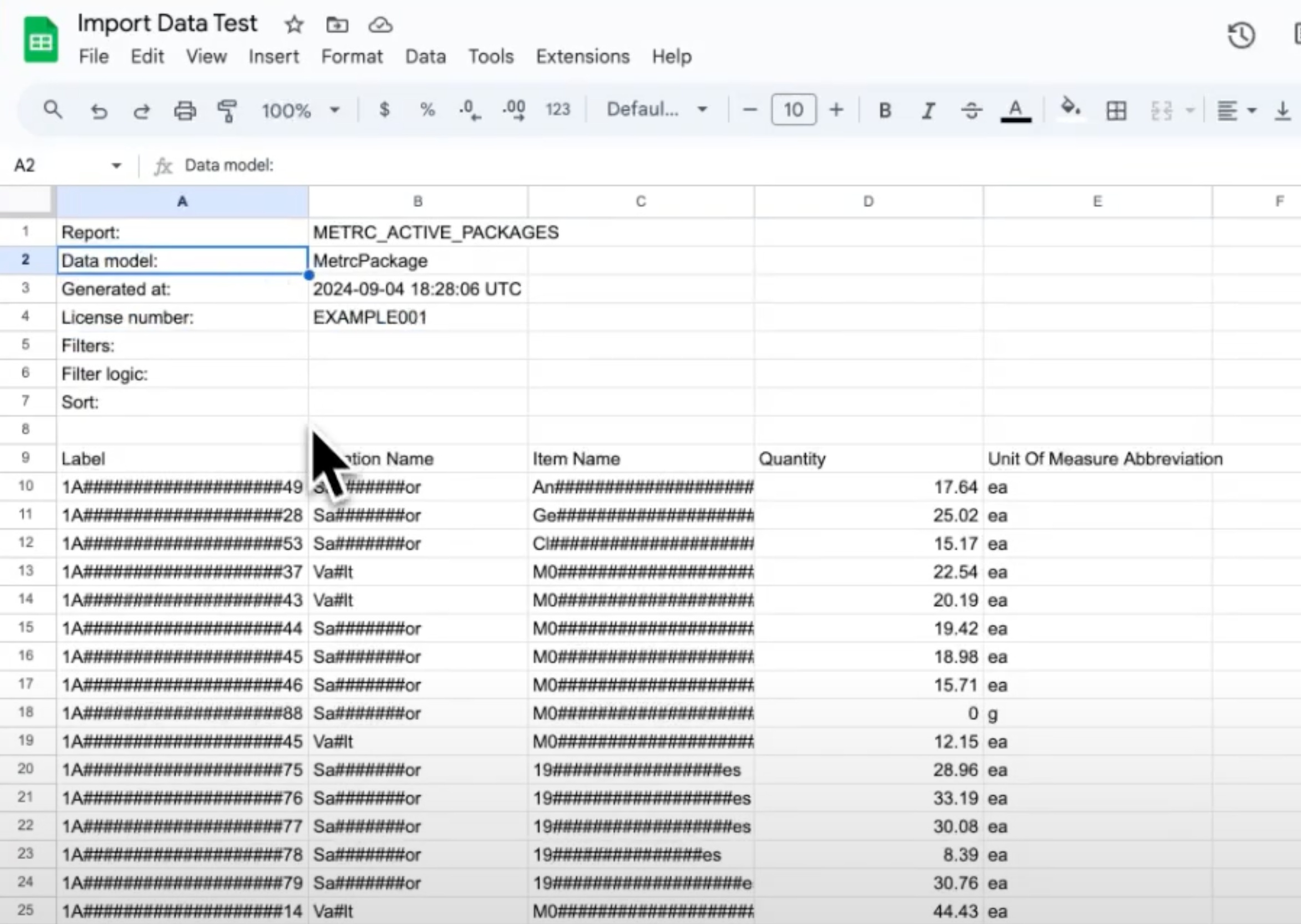
Example output
Demo of Advanced Spreadsheet Sync Usage
Spreadsheet Sync allows for advanced filtering options:
Demo of Advanced Spreadsheet Sync
Next Steps
- Pick the report path you want to sync from Report Endpoints.
- Trim the columns before they reach the sheet with Shaping a Report.
- For a one-off export instead of a live link, see T3 API Reports.
- Start your free 30-day T3+ trial