Scan Sheets
T3 can generate an Excel file or Google Sheet populated with all packages from any transfer. Using a bluetooth scanner, scan in the packages in the transfer in any order and get visual feedback on the scanned tag.
Generating a Scan Sheet
Scan sheets can be generated either from the transfer table button, or from the Scan Sheets category in T3 Reports:
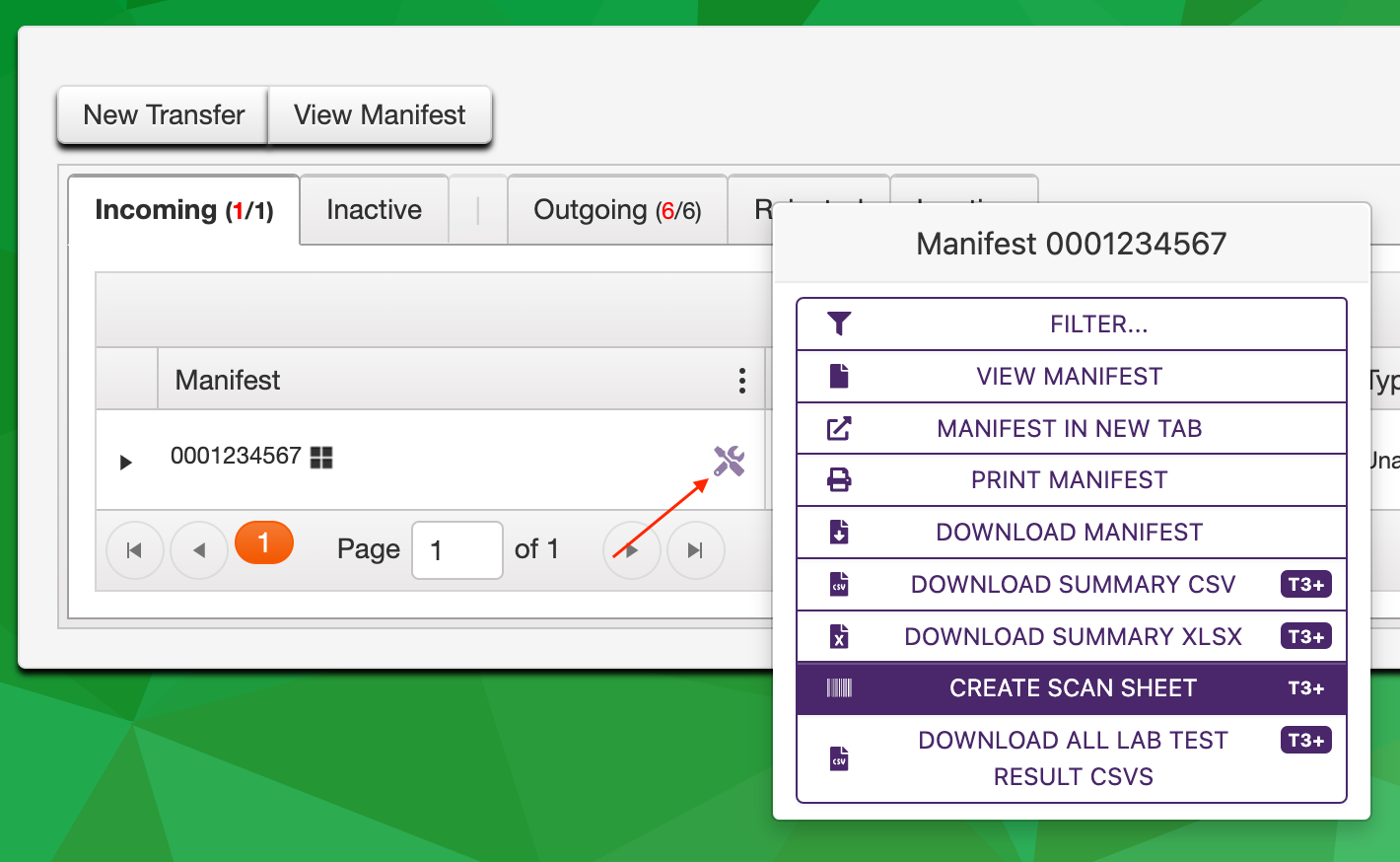
Generating a scan sheet from the transfer table
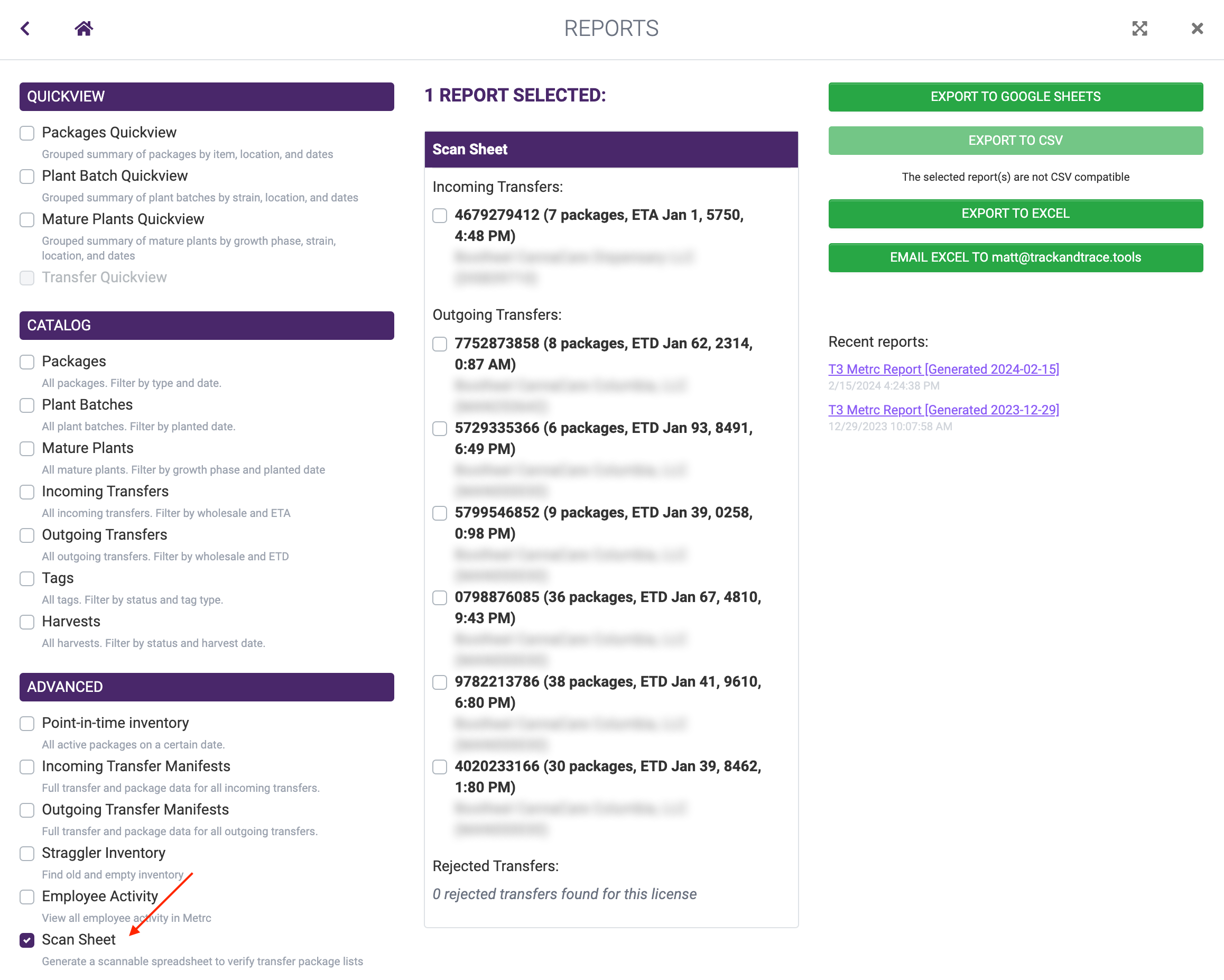
Generating a scan sheet from T3 Reports
Selecting transfers
Choose a transfer type (incoming, outgoing, rejected, or hub) and a license. T3 lists the active transfers for that license, each with its manifest number, shipper, recipient, package count, and date. Check as many as you want to appear on one sheet.
One sheet covers one transfer type. To reconcile incoming and outgoing at the same time, generate a sheet for each.
A scan sheet holds 10,000 packages
The row budget shown above the Generate button counts packages, not transfers, across every manifest you have selected. Going over blocks the request, a scan sheet that large is almost always a forgotten filter rather than a real day's work.
Output formats
A scan sheet is a formatted spreadsheet (the colors are what make it work) so the plain text formats do not apply. Format and delivery are chosen separately.
Format:
- Google Sheets (recommended), a new sheet you open in a tab
- Excel (.xlsx): a workbook file
Delivery:
- Open now: the sheet or file is built while you wait
- Email: a background worker builds it and emails it to you. Use this for a large sheet, since it has no time limit
Filling in an email address when opening a Google Sheet immediately shares that sheet with the Google account, so you can find it again later.
Using your Scan Sheet
- Open your scan sheet in any spreadsheet software. Click to select the first empty cell in the "Scanned Tags" column.
- Scan each Metrc package tag. The cells will update with color to indicate if that tag is expected or not. Refer to the Scan Sheet color codes section below to learn what different cell colors mean.
- Once finished scanning, review your scan sheet.
- If all colored cells are green, you have successfully scanned in the entire order with no extra or missing packages.
- If any colored cells are red, yellow, or orange, there is a problem. Inspect the list of scanned tags to determine which tags are missing, duplicated, or extra.
Scan Sheet color codes
Scan sheets use colored cells to visually indicate how the scanned tags match the expected list of transfer tags.
- Green: tag matched exactly once
- Yellow: tag was scanned twice
- Orange: tag is not present in the order
- Red: tag is missing
Initial state of a Scan Sheet
When you open a scan sheet for the first time, all Package Tag cells will be red, indicating they have not been scanned.
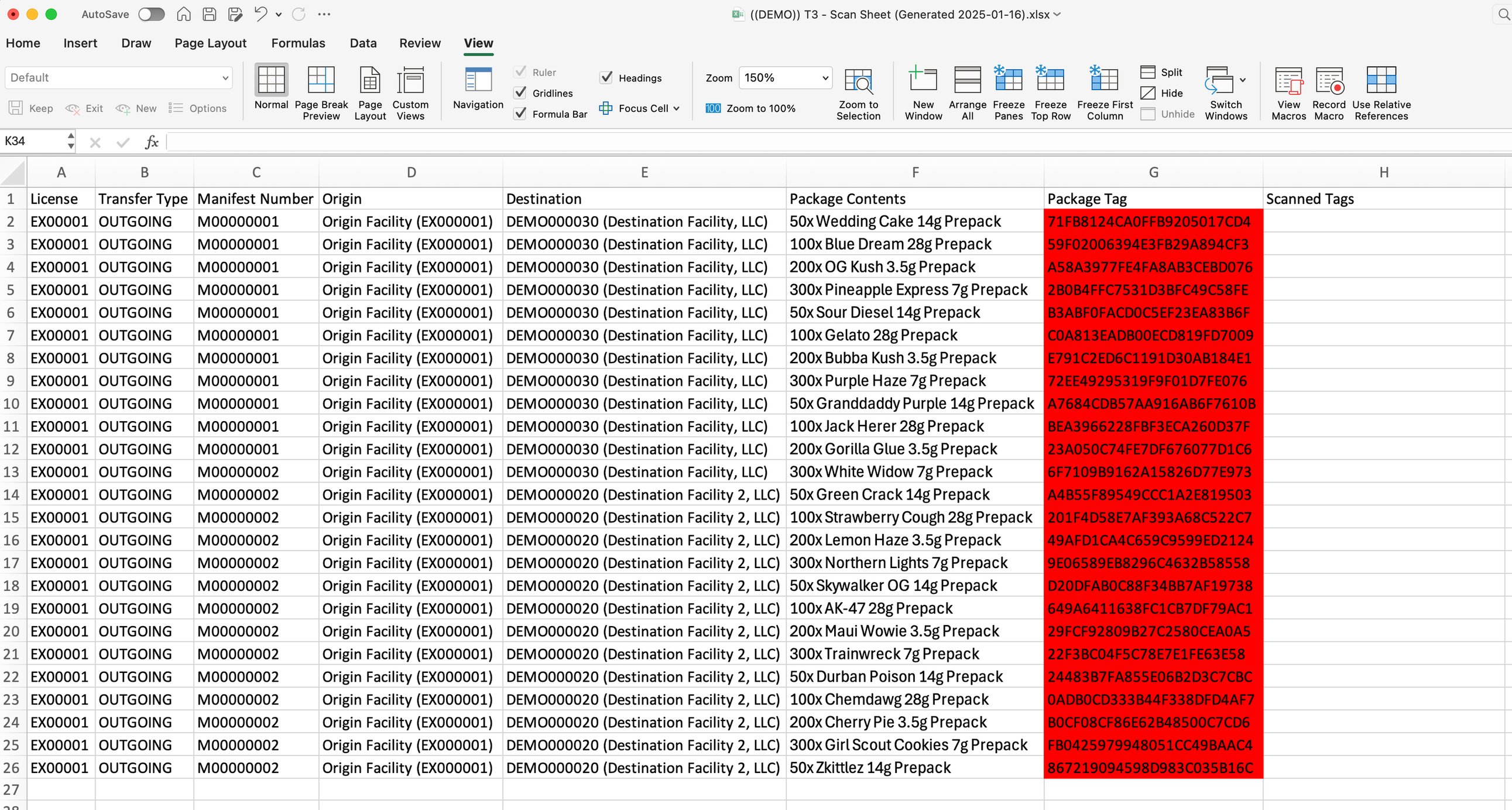
Initial state of a Scan Sheet
Scanning in tags
As you scan in matching tags, the corresponding cells will begin to turn green if they match. You can scan in tags in any order.
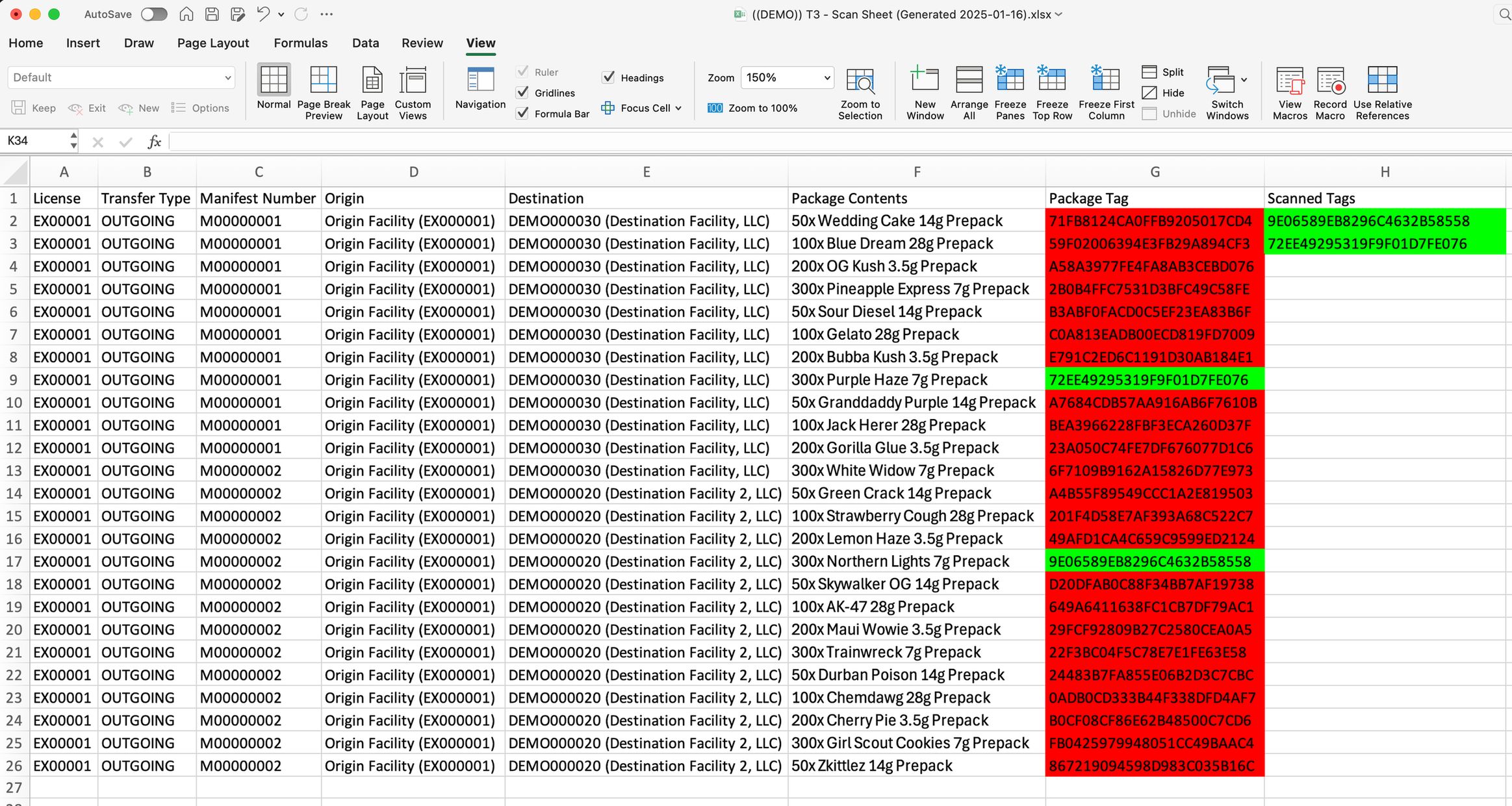
Scanning in tags
Duplicate scanned tags
If you scan a tag more than once, all the matching cells will turn yellow. Delete the duplicate scan and continue on to the next package.
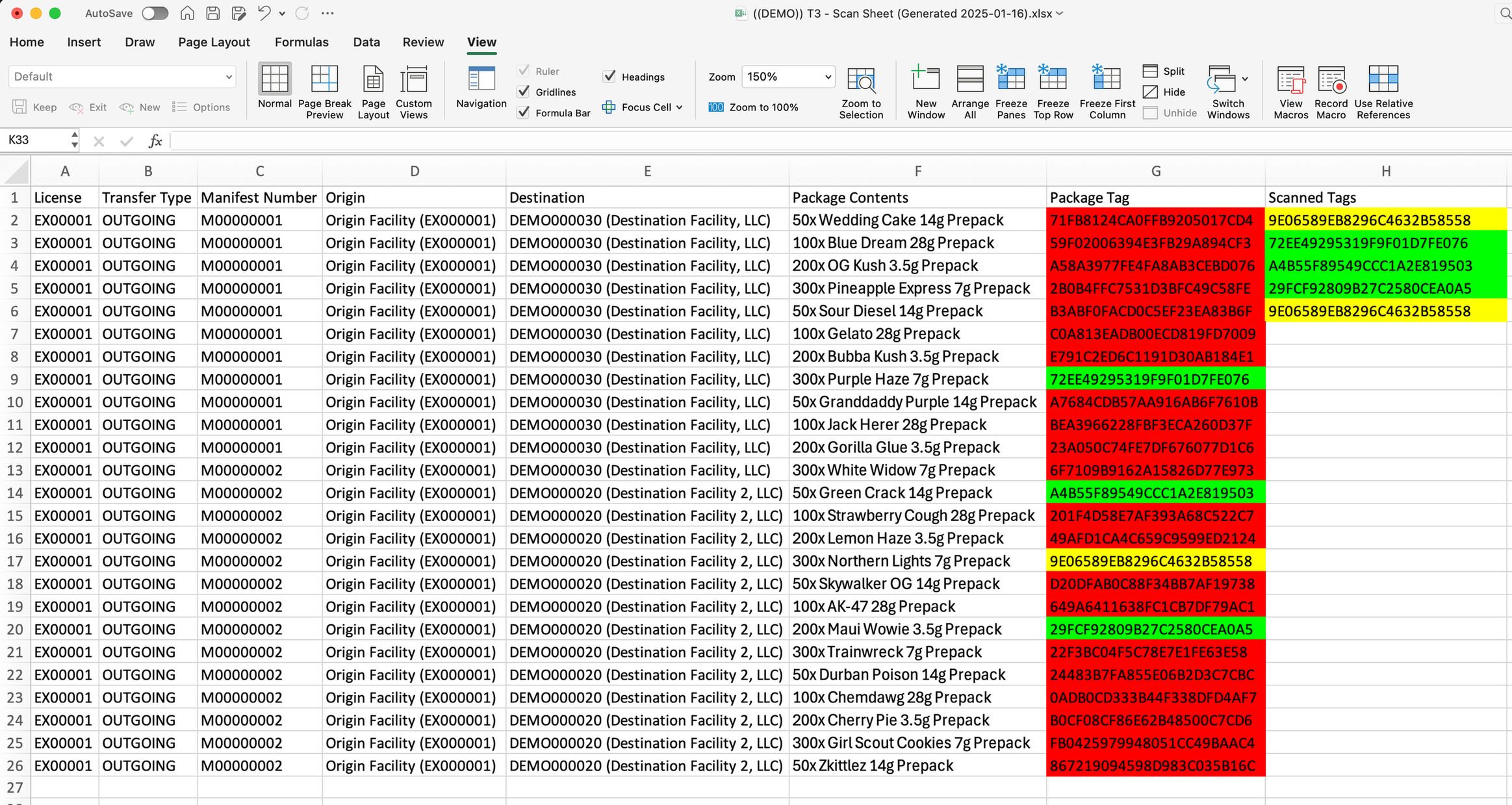
Duplicate scanned tags
Unexpected scanned tags
If you scan a tag that does not appear anywhere in the scan sheet, the cell will turn orange.
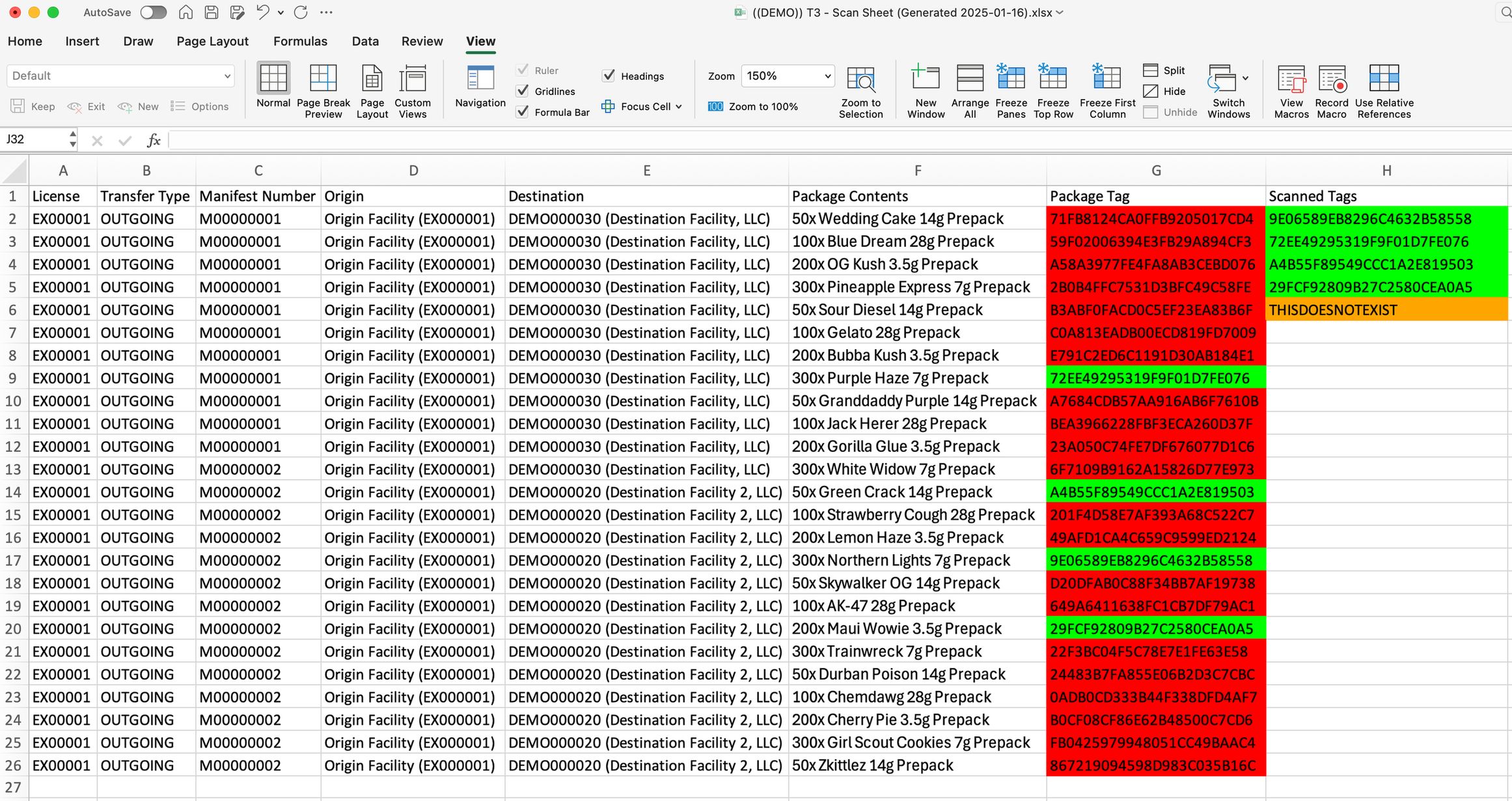
Unexpected scanned tags
Example: order with a single missing package
The following screenshot shows a scan sheet with two orders after all scanning is completed. There is a single missing package, and the scan sheet immediately identifies which package is missing.
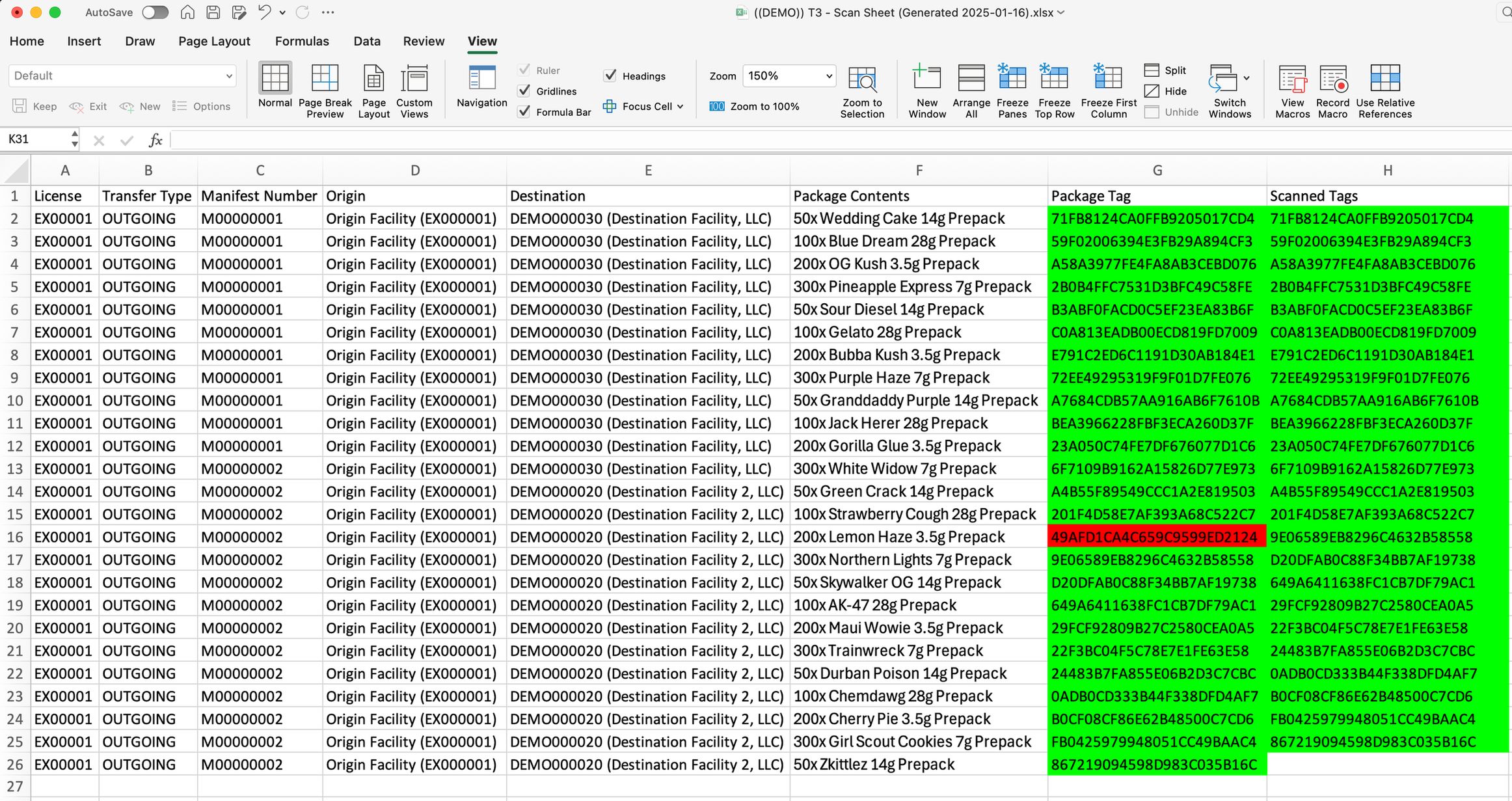
Scan sheet missing package
Obtaining a scanner for scan sheets
Scan sheets are designed to use HID barcode scanners (such as this one) to scan in Metrc package tags in transfers.
When you connect the HID scanner to your computer or phone, it will register as a keyboard. When scanning a Metrc tag, the scanner will type out the tag contents and move to the cell below it.
Scan Sheet Demo
Demo of T3 Scan Sheet
Next Steps
- Build the underlying manifest report yourself in T3 Reports.
- Browse the older Exports (Legacy) tool for reports with no T3 Reports equivalent yet (point-in-time inventory, employee activity, invoices).
- Learn more about T3+ Chrome Extension features
- Install the T3 Chrome Extension