Saving and Generating
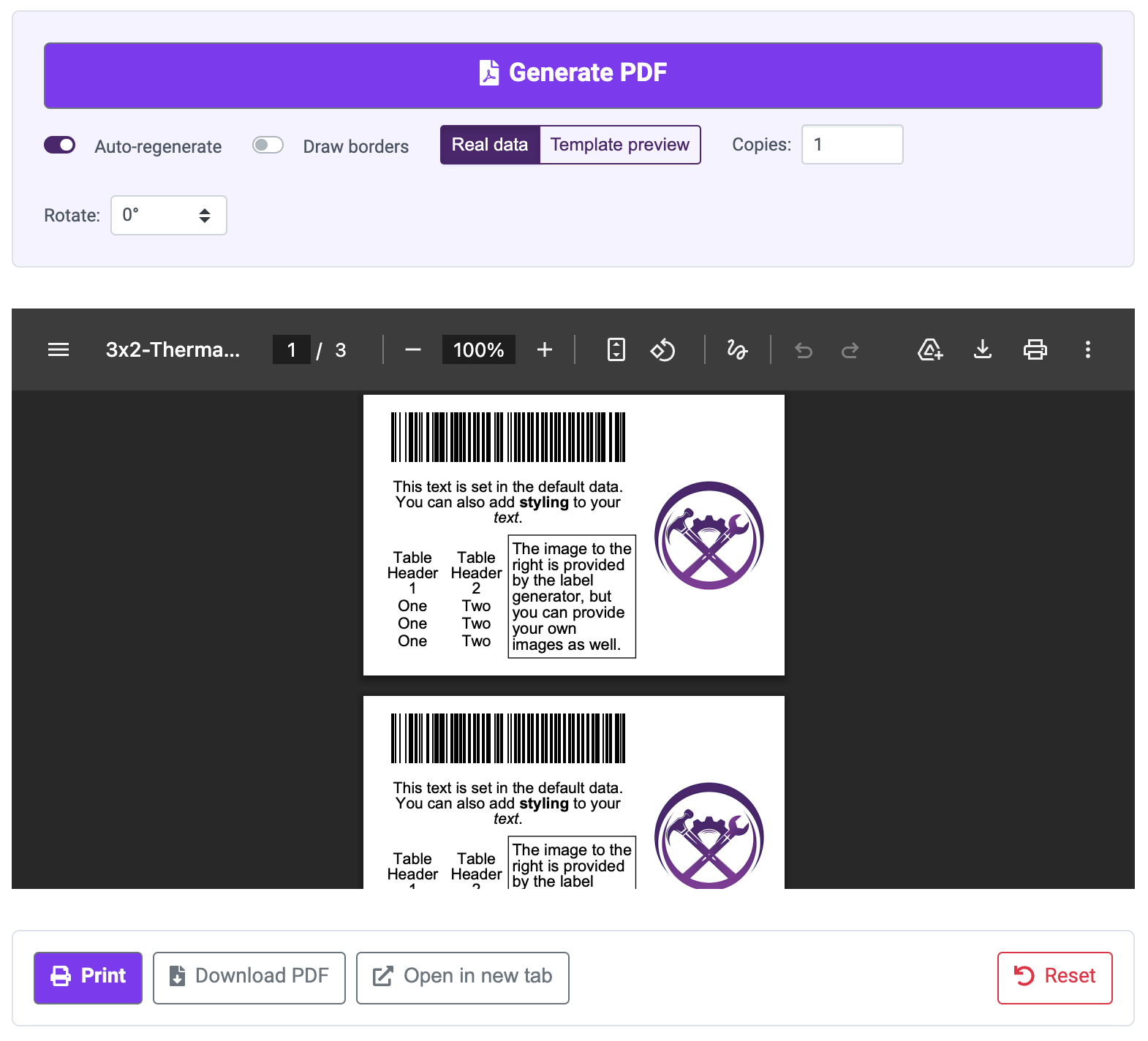
Previewing a generated label
Saving Templates and Layouts
Templates and layouts are saved separately, so a layout you design once can be printed on any template you have.
When a template or layout is loaded, a card at the top of the tab shows its name and status:
- Starter marks a built-in template or layout provided by T3. These are read-only: every field on the tab is disabled, and a banner says so. Save as Copy creates an editable version of your own.
- Custom marks something you saved yourself. Make a Copy duplicates it under a new name.
- Auto-save saves your changes as you work. Turn it off if you would rather save deliberately with the Save button.
- A save status sits beside the name and tells you where you stand: saving, saved, unsaved changes, or a save that failed.
- Reset clears the current selection and starts over.
Saved templates and layouts are visible to Metrc users who have access to the same license, so a design made once can be shared across your team. Editing a saved template or layout also adds your own licenses to the set that can see it.
My Templates and My Layouts
These two tabs are the full management screens for everything you have saved. Each row shows the name and description, whether it is a T3 system object or your own, and up to three tags.
- Search filters by name.
- Edit renames and re-tags one of your own.
- Archive removes an item from the pickers without deleting it. Archived items are still listed when you turn on Show archived.
- Clicking a row makes it the active template or layout.
Nothing is deleted, and archiving is one way
Custom templates and layouts are archived rather than deleted, because a layout may be embedded as a fragment in labels you have forgotten about. An archived layout still loads by id, so anything already using it keeps working.
Archiving cannot currently be undone, so archive something only when you are done with it. If you are unsure, rename it out of your way instead.
Generating and Previewing
Click Generate PDF to render your labels. A long generation shows a spinner and can be cancelled. The preview appears in the right column, with four buttons below it:
- Print opens the print dialog for the PDF.
- Download PDF saves it.
- Open in new tab opens it in its own browser tab.
- Reset asks for confirmation, then returns the whole Studio (template, layout, data and settings) to its defaults.
The controls beside the button:
| Control | What it does |
|---|---|
| Auto-regenerate | Re-renders the PDF on every change, rather than waiting for you to click |
| Draw borders | Outlines every element in the rendered PDF. The fastest way to understand why something is positioned oddly |
| Real data / Template preview | See Template Preview Mode |
| Copies | Prints each label more than once |
| Rotate | Turns the layout on the page |
For printer setup, driver installation and troubleshooting, see Printing Label PDFs.
Template Preview Mode
Switching the Real data / Template preview pair to Template preview prints the label's own templates instead of their values. You see {{ package.label }} on the label where a tag would be.
This exists so you can lay out and size a label before you have loaded any data, which is the normal order of work, since sizing a field is much easier when you can see where it sits.
Four things to know:
- It changes only what is sent to be rendered. A layout you save while it is on still stores your real templates. There is no way to accidentally save a literalized layout.
- It is not remembered. Reopening the Studio puts you back on real data.
- Quick Print always uses real data, because it prints labels for real packages.
- Only value interpolations are literalized. Jinja statements such as
{% for %}still run, so a generated table still looks like a table rather than collapsing into its own source. Image elements are the exception; an image value has to decode as image data, so those are replaced with a placeholder image.
Switch back to Real data before printing labels you intend to use.
When Generation Fails
Two different kinds of failure are reported differently.
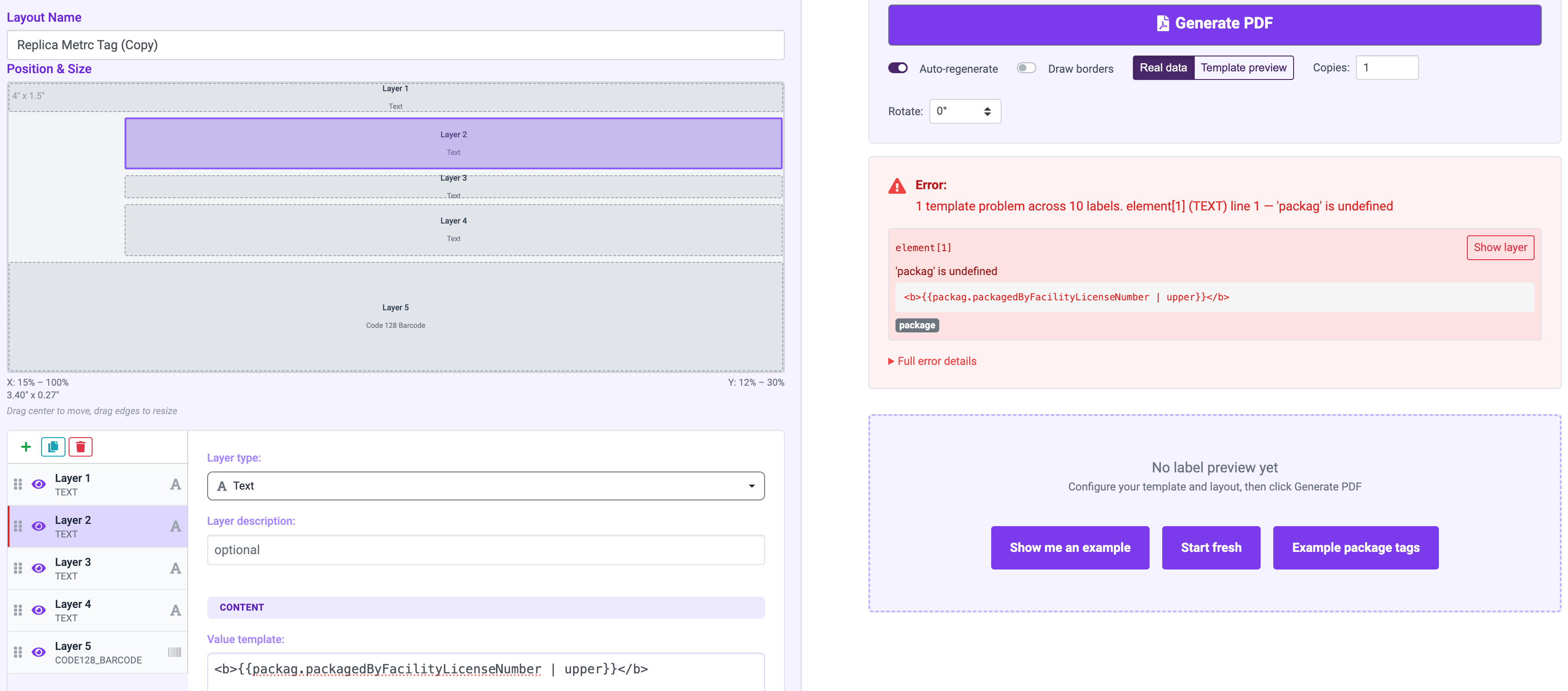
A failed generation
A validation error means generation never started: one of the five configuration checks failed. The right column names the problem and what to do about it.
A generation error means the API rejected the request. This block is worth reading closely, because it is specific:
- The API's own explanation of what went wrong.
- One card per failing element: naming the element, the message, and the line of your value template that caused it. If the failure happened inside an embedded layout, the card shows the path through the fragment so you know which layout to open.
- Suggestions. The most common cause is a value template referencing a field that does not exist in your loaded data, and the error offers the closest matching field names.
- A Show layer button that jumps straight to the element at fault.
- A Full error details section with the raw response, which is the right thing to include when asking for help.
The tutorial covers what to do when a label will not render.
Next Steps
- Send the PDF to a printer with Printing Label PDFs.
- Generate the same label from code: Generating Label PDFs.
- If generation fails, check the layout in Layout Builder.