Label Data
The Label Data tab supplies the list of records to print. One record produces one label, so a list of 30 packages prints 30 labels.
Once data is loaded, a card at the top of the tab shows how many records you have, with Show to inspect them as JSON and Clear to start over.
There are four sources:
| Source | Use it for |
|---|---|
| Load from Metrc | Pulling packages, plants or plant batches directly. T3+ only |
| Demo Packages | Sample data for exploring label features without touching real records |
| Import from File | Uploading a CSV or JSON file |
| Manual Entry | Typing or pasting label data directly |
With no records loaded, the tab also offers a quick start, Just give me some package label data, which loads five lab-tested Active Superpackages from your Metrc license. Like any Metrc load, it needs T3+.
Loading From Metrc
Choose what to load. The superpackage options attach lab results, history and source harvests to each package. That is what makes potency and testing fields available to your templates, and it is also why they are capped lower:
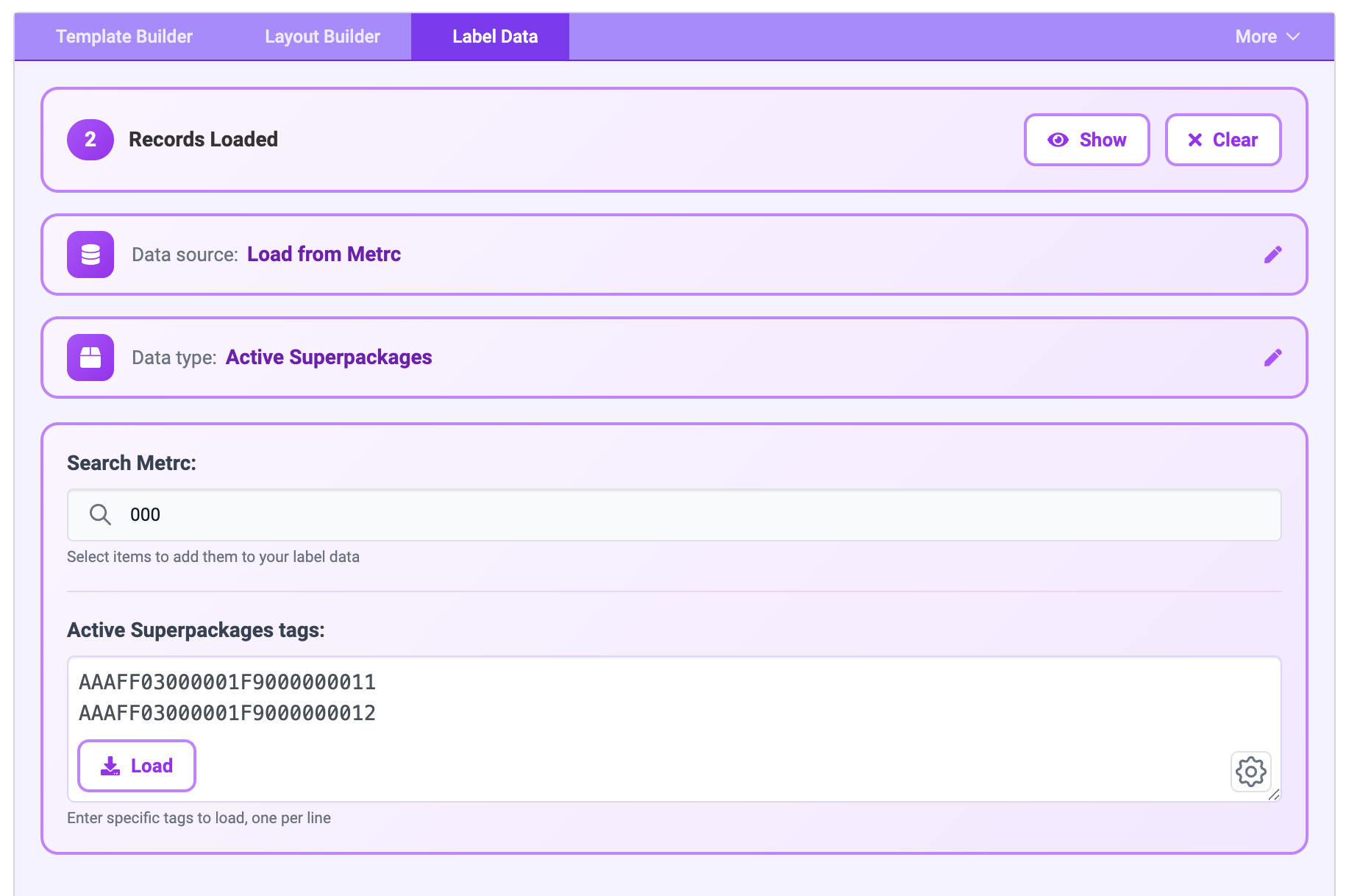
Loading data from Metrc
| Data type | Maximum records |
|---|---|
| Active Superpackages | 100 |
| In-Transit Superpackages | 100 |
| Active Packages | 500 |
| In-Transit Packages | 500 |
| Vegetative Plants | 500 |
| Flowering Plants | 500 |
| Active Plant Batches | 500 |
Then pick your records in one of two ways, side by side:
- Search Metrc: a search box scoped to the matching Metrc grid. Selecting a result adds it to your label data. Good for a handful of records.
- Tags: a text box for pasting tags directly, one per line, with a Load button. Good for a list you already have in a spreadsheet.
The Studio opens on Active Superpackages, and returns there whenever you reset.
Other Data Sources
Import from File takes a CSV or a JSON array, one row or object per label.
Manual Entry gives you a JSON editor bound directly to the label list, plus an empty label generator: pick a count and get that many blank records. This is how you print a run of identical labels that carry no Metrc data at all: generate the number of labels you want, and let the layout supply everything.
Demo Packages loads ten randomly generated sample packages as soon as you click it. Use it to explore fields, sizes and layouts before pointing the label at anything real.
Once data is loaded, every field on the record is available to your value templates. For a package, that includes:
{{ package.label }}: the Metrc tag{{ package.item.name }}: the item name{{ package.item.strainName }}: the strain{{ package.quantity }}and{{ package.unitOfMeasureName }}: quantity and unit{{ package.metadata.indexedLabResults.totalTHC.value }}and{{ package.metadata.indexedLabResults.totalCBD.value }}: indexed lab results, when present (see Lab Result Keys)
Use Insert Field in the Layout Builder rather than typing these from memory. It lists exactly what your loaded data contains, with an example value beside each one.
Where else a value can come from
The Label Data tab supplies one record per label. Three other tabs supply values too, and a template reads all four the same way:
| Tab | What it holds | Read as |
|---|---|---|
| Label Data | One record per label | {{ package.item.name }} |
| Default Data | Values shared by every label, or used as a fallback | {{ facilityAddress }} |
| Built-in Data | Text and images T3 ships | {{ t3.text.poison_control_center_phone }} |
| Images | Images you upload | {{ images['logo.png'] }} |
Default Data
Default Data is a single JSON editor holding values shared across every label, or values to fall back on when a record does not carry its own. It is sent as commonContentData.
Its keys merge into the top level of each label's record, so they read exactly as if you had repeated them in every entry:
A record's own value always wins. Default Data only fills in keys a record does not already have, which is what makes the fallback case work: set a default strain name, and only the packages missing one will use it.
Most labels do not need Default Data. Reach for it when the same literal appears on every label, or when your data is uneven and you want a safety net.
Built-in Data
Built-in Data is a read-only list of values T3 provides on every label request, under the t3. namespace. Nothing to upload and nothing to configure.
It covers state warning images, compliance disclosures and Poison Control Center contact information. Both halves are keyed by state abbreviation, so {{ t3.text.co_cannabis_warning_disclosure }} is the Colorado wording and {{ t3.images['ca_cannabis_warning.png'] }} is the California mark. Seventeen states have warning text, and seventeen have images. See State Disclosures and State Images for the full lists and the key naming.
GET /v2/labels/globals returns the full current list.
Images
Images is where your own logos and graphics live. Upload images takes any image type and accepts several files at once; uploads appear as a thumbnail grid showing each image with its filename.
Reference an uploaded image from an IMAGE layout element by the filename it was uploaded under:
In the Layout Builder, Insert Image on an IMAGE layer lists your uploads under My Images and T3's under Built-in, so you rarely need to type the name. With nothing uploaded yet it says so and links back to this tab.
Uploaded images are stored in your browser rather than on your T3 account, so they stay on the machine you uploaded them from. To move a design that uses one to another browser or another person, export it with Images ticked, which embeds the image data in the exported file.
images and t3.images are different namespaces
Your uploads are read as {{ images['name.png'] }}. T3's built-ins are read as {{ t3.images['name.png'] }}. The t3 namespace is replaced with T3's own values on every request, so an uploaded file will never be found there no matter what it is called.
Next Steps
- Write the values into your layout in Layout Element Values.
- Produce the PDF in Saving and Generating.
- Follow a data-driven label end to end in Name the Product.