Template Builder
A template describes the physical label and the sheet it sits on. It says nothing about content; that is the layout's job. The same layout can be printed on any template, which is what makes it easy to move a design from a thermal roll to a sheet of Avery labels.
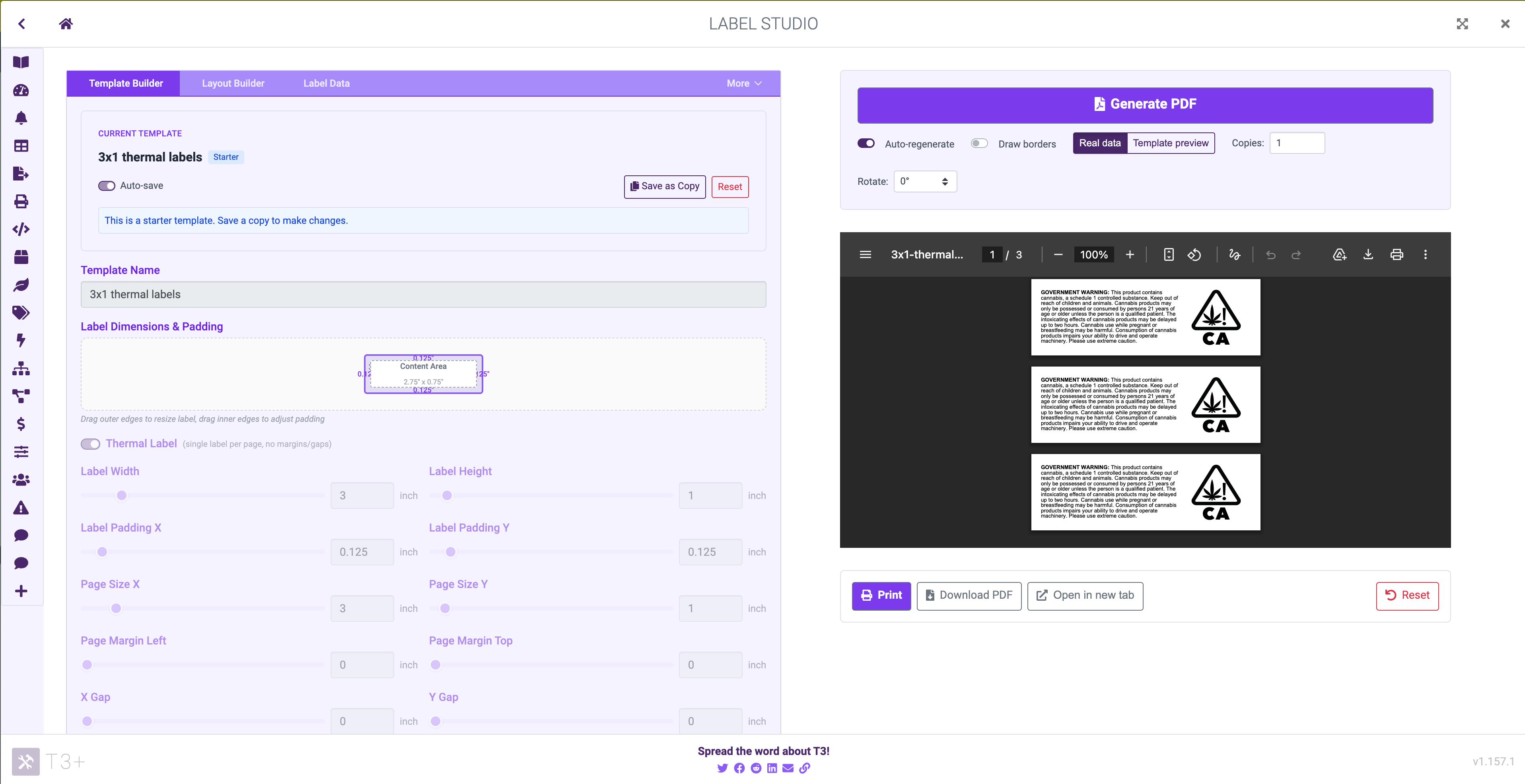
The Template Builder tab
The top controls set the label itself:
- Label Width and Label Height, in inches.
- Label Padding X and Label Padding Y, the unprintable margin inside each label. Padding is useful when your printer cannot reliably reach the very edge of a label.
The controls below describe the page the labels are arranged on: Page Size X/Y, Page Margin Left/Top, X Gap, Y Gap, Number of Columns, and Number of Rows.
Every value is both a slider and a number box, so you can drag to find a size and then type the exact one. Two live diagrams sit above them: a scale drawing of a single label with its padding shaded, and (when a page holds more than one label) a scale drawing of the full sheet with the grid on it.
Each control maps to one field in the template config. For the field names and worked examples, see Template Fields.
A Current template JSON section at the bottom of the tab holds the raw configuration, editable directly. Anything you change there is reflected in the controls above, and vice versa.
Starting From a Starter Template
With no template loaded, the tab offers a search box over T3's starter templates. Search by size, brand, or printer type (3x1, Dymo, thermal) and hovering a result previews it: a page diagram for sheet templates, a single-label diagram for thermal ones.
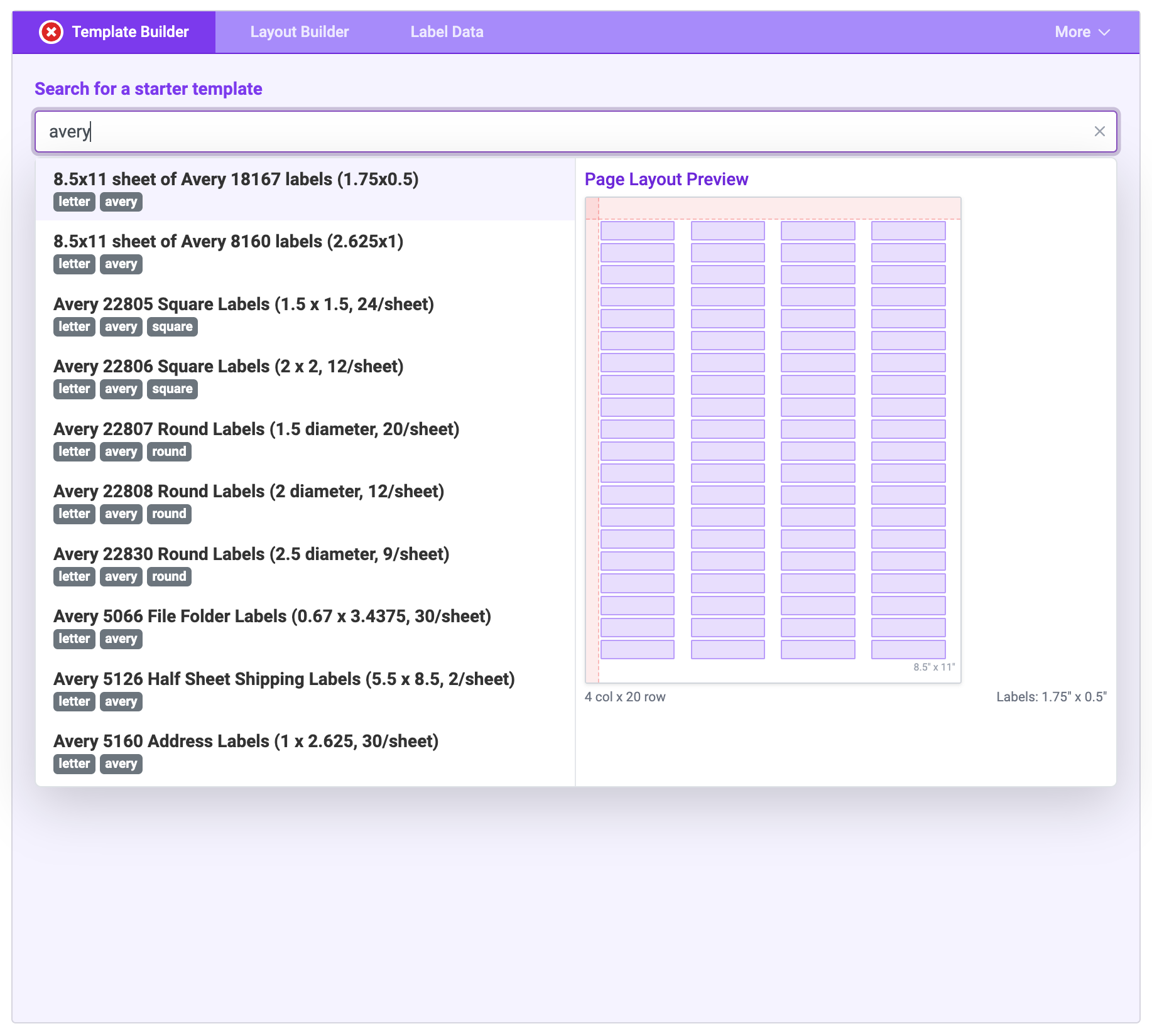
Starter template search with hover preview
Starter templates are read-only. Pick one to work from and use Save as Copy to get an editable version of your own. See Saving Templates and Layouts.
The Thermal Label Toggle
Most thermal printers print one label per page, where the "page" is exactly the size of the label. The Thermal Label toggle is a shortcut for that arrangement.
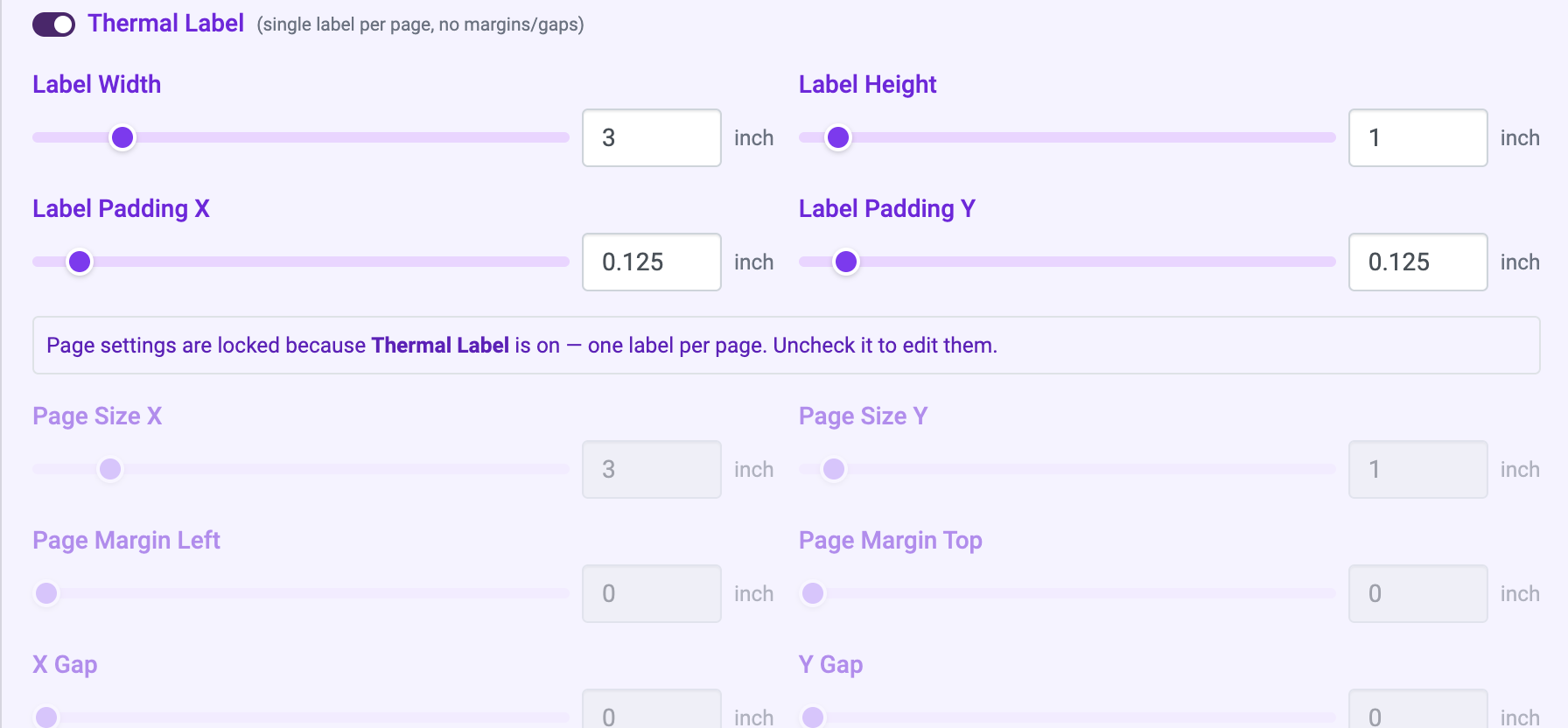
The thermal label toggle
Turning it on pins eight values at once: page size becomes the label size, columns and rows become 1, and all margins and gaps become 0. If any of those values would change, you are shown exactly what will be overwritten and asked to confirm first.
While the toggle is on:
- The eight page settings are locked, and a note explains why.
- Page Size X and Page Size Y follow the label dimensions automatically, so resizing the label resizes the page with it.
Turning the toggle off unlocks those settings and changes nothing else; your saved template is left exactly as it was. Uncheck it whenever you need to print on a sheet of labels rather than a roll.
The toggle is an editor convenience, not a template setting
Nothing about thermal mode is stored in the template or sent to the API; a thermal template is just a template whose page holds one label. The toggle only decides whether the Studio locks those eight controls for you.
If you edit the raw JSON or import a template so that its page no longer holds exactly one label, the toggle turns off. Turning it off yourself sticks: the Studio will not switch it back on for you.
Next Steps
- Every template field, with worked examples: Label Templates.
- Arrange content on the label in Layout Builder.
- Match the template to your hardware in Choosing a Label Printer.