Printing Label PDFs
Introduction
The T3 Label Generator produces PDF labels that can be printed on any printer, including thermal, inkjet, and laser models. Some printers will print PDFs correctly out of the box, and some will require some configuration.
Generating Label PDFs
Generate your label PDF from within the T3 Label Studio or with the T3 API Label Endpoints. Each label in the PDF is formatted to the exact dimensions based on your template configuration.
Once a label PDF is generated, it can be sent directly to your printer for printing.
Printing Labels
Once you have your label PDF and your printer is ready to print, you will need to configure how your label printer handles PDFs.
Note: Some label printers require a bit more "screwing around" than others to get printing to work correctly. I recommend repeatedly printing a single test label and adjusting settings one at a time until the print is correct. Through extensive testing, I've determined that every label printer has a configuration that will print PDF labels correctly.
You'll only need to perform this setup once, and then easily reuse it each time you print PDFs.
Configuring Printer Settings
For accurate label output, configure the following settings in your print dialog or printer preferences:
- Paper Size: Match your label template size exactly (e.g. 4"x6", 2.25"x1.25"). Some label printer drivers will include presets that you can select from, while others will require you to enter the dimensions manually.
- Scaling: Set scaling to 100% or Actual Size.
- Margins: Use no margins or “borderless” settings if available
- Portrait/Landscape: This typically does not affect the print output, but prefer portrait unless your labels are coming out sideways.
- Print Quality / DPI: For text and barcode clarity, use 300 DPI or higher when available. However, you may not always want to use the highest DPI available. See Troubleshooting for additional details.
How Label Printers Handle PDFs
(Skip this section if you are not interested in the technical details)
Most label printers cannot interpret PDF files on their own. Instead, the computer takes responsibility for converting the PDF into a printable format. This process is known as host-side rendering.
Host-side Rendering
When a PDF is sent to a label printer, the operating system or print driver first converts the PDF into a raster image. A raster image is a pixel-based representation of the content, similar to a photograph or a screenshot. This step ensures that any fonts, vector graphics, or layout elements from the PDF are flattened into a format that the printer can handle.
Once the raster image is generated, it is translated into the printer's native command language. Common languages include ZPL (Zebra Programming Language), EPL (Eltron Programming Language), and DPL (Datamax Programming Language). These are text-based markup formats that describe how the printer should place text, lines, barcodes, and other graphical elements on the label.
This approach means the printer itself does not need to understand PDFs. It simply receives a stream of instructions that describe how to print the rasterized label.
This method is widely used for desktop and industrial label printers that connect via USB or network. It allows for maximum compatibility without requiring the printer to support complex document formats like PDF. However, the quality and accuracy of the final printout depend on the resolution used during rasterization and the capabilities of the printer driver.
Printing your PDF
Print Dialog
The print dialog is the window that shows up after you click a "print" button.
The print dialog controls how the PDF is sent to the printer. It includes all the configurable settings for how the print will appear: portrait/landscape, scale, orientation, DPI, etc.
Some PDF viewers will have their own print dialogs, and others will use the system print dialog. Below are three different print dialogs printing the same labels: Adobe Acrobat, Google Chrome, and Mac OS X:
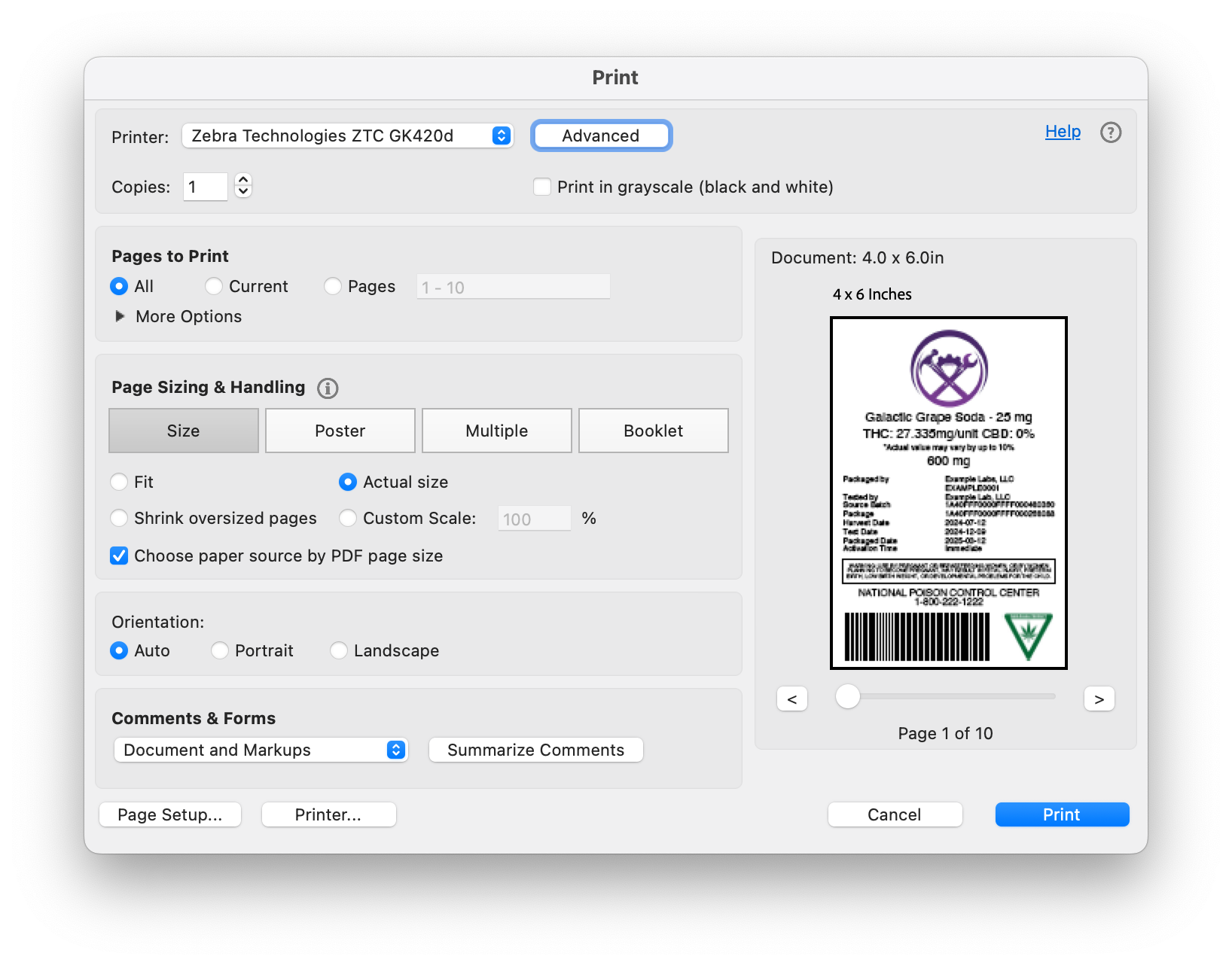
Adobe print dialog
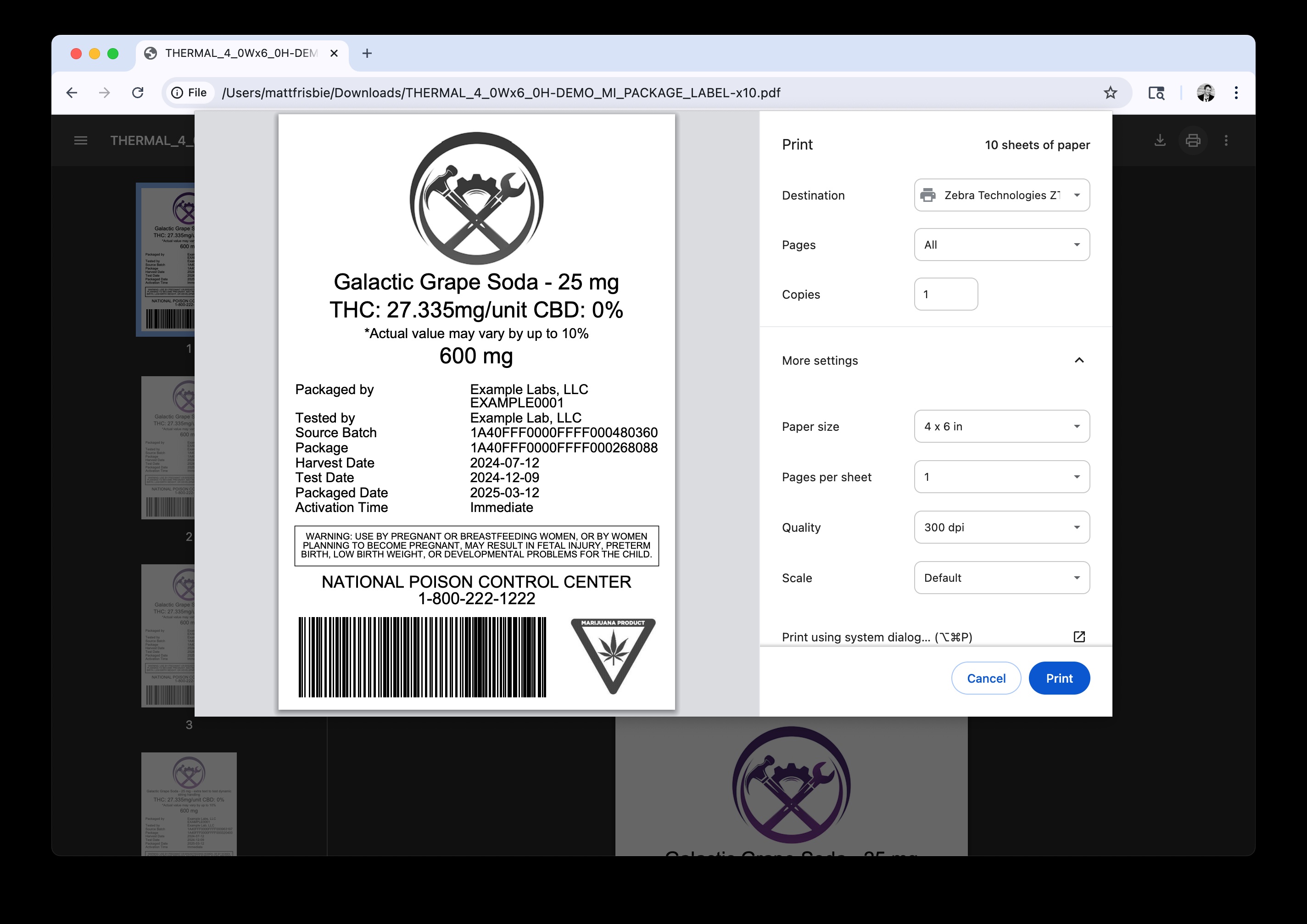
Google Chrome print dialog
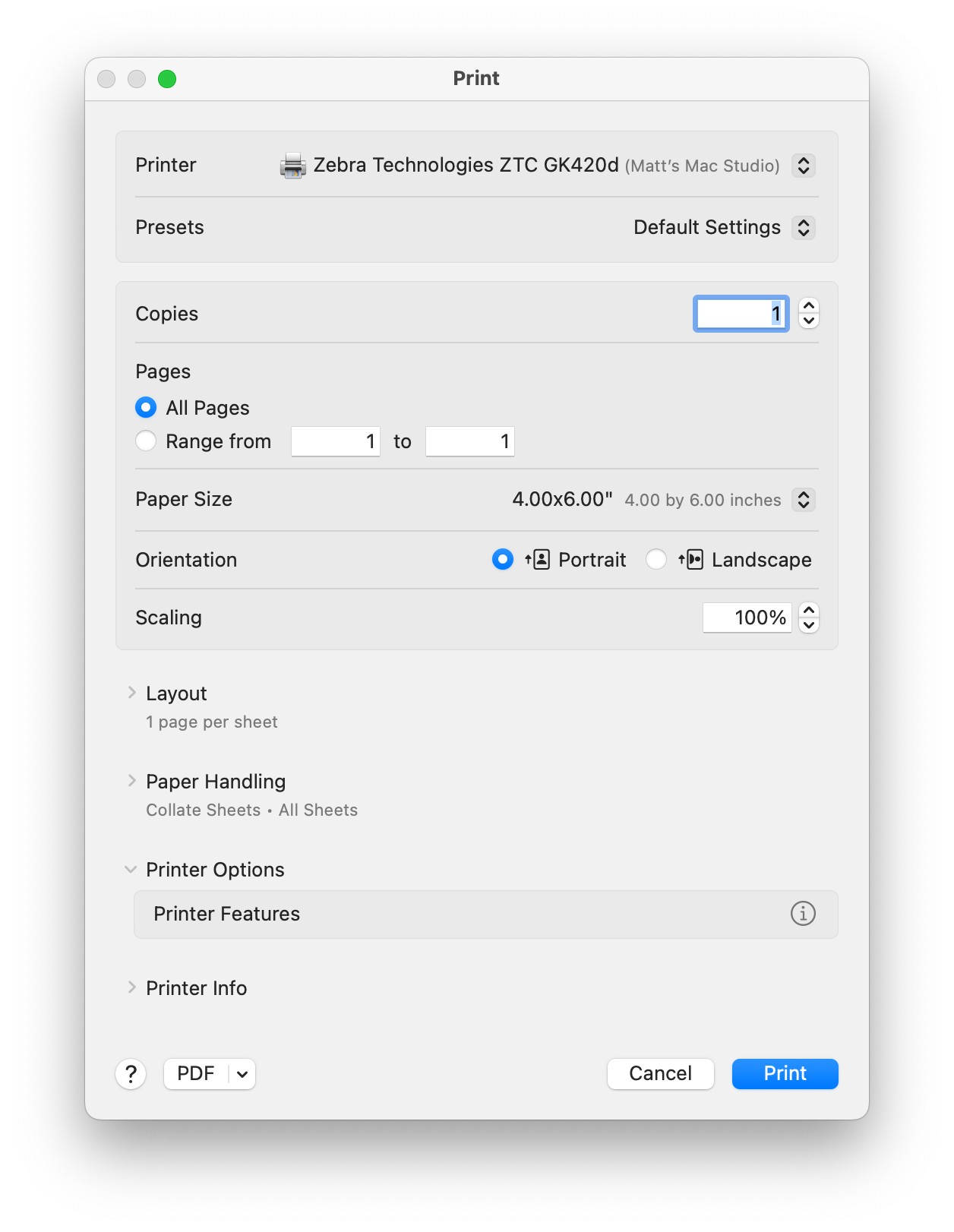
Mac OS X system print dialog
Driver Print Settings
Most print dialogs will group the label printer settings in a nested window that is hidden by default. See below for examples of Zebra and Dymo label printer settings:
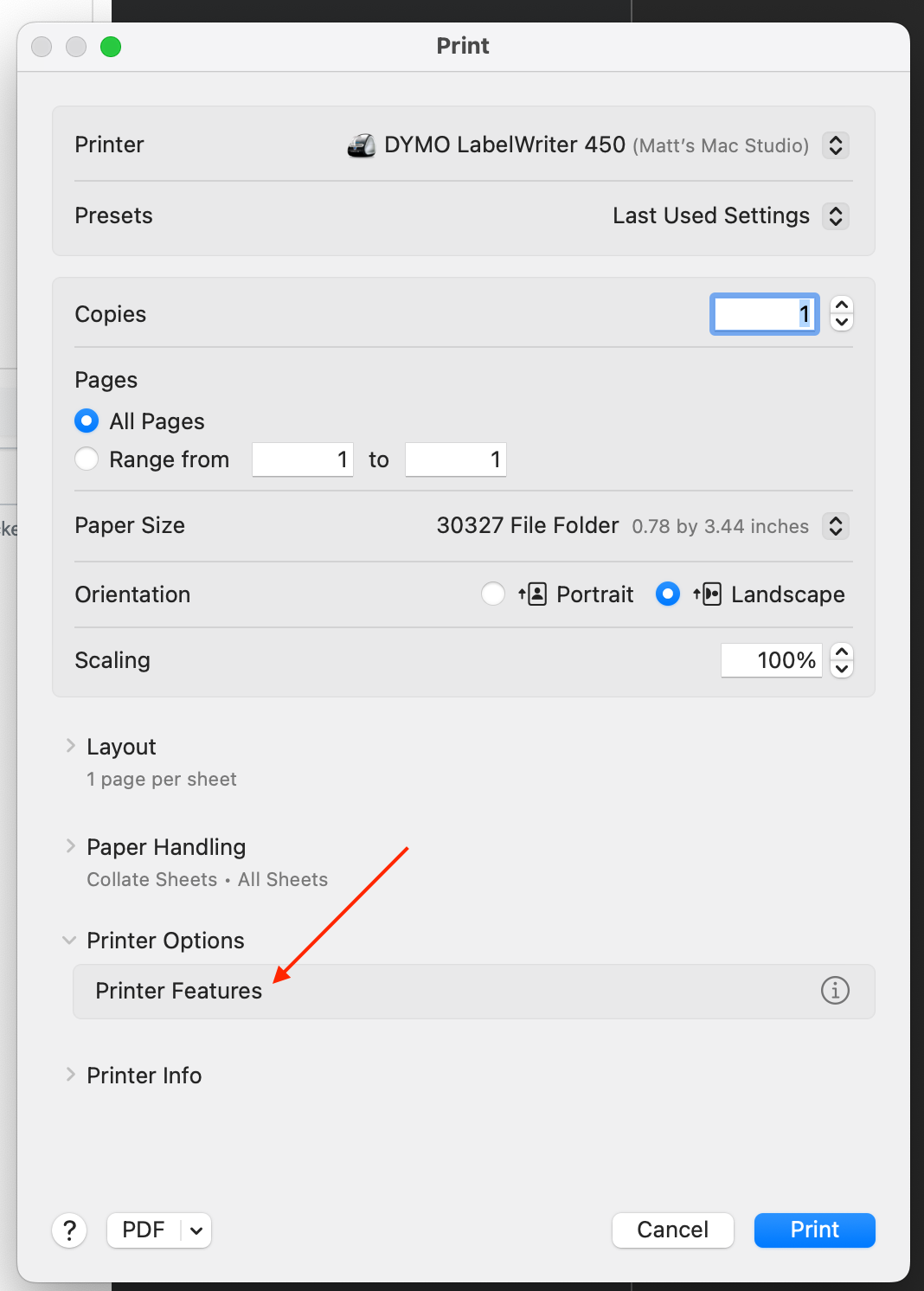
Accessing printer driver settings
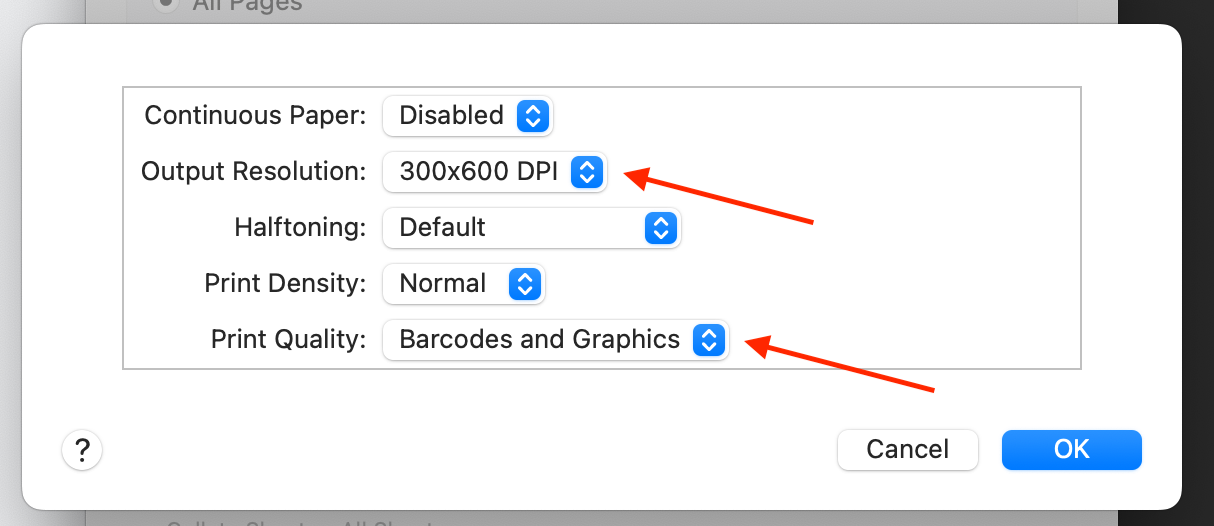
Dymo driver settings
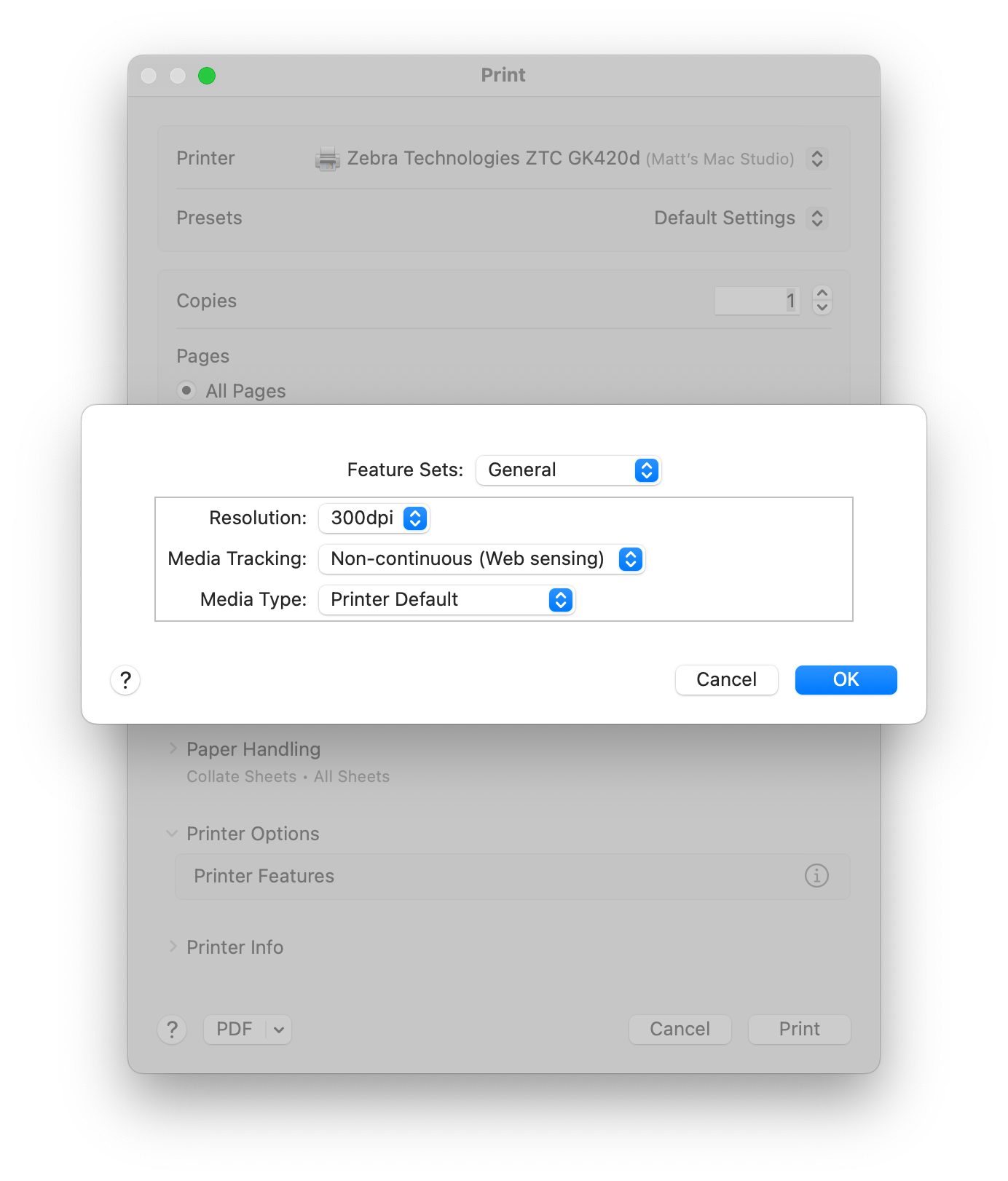
Zebra driver settings
Troubleshooting
95% of label printing problems are from the PDF label size not matching the print setup size. Check that these exactly match before proceeding.
| Problem | Possible Explanations | Solution |
|---|---|---|
| Printed barcode content is not centered on the label | •Label size does not match the print setup size | •Check your T3 label template size, print options size, and actual label dimensions all match |
| Printed barcodes are unscannable | •Barcode print accuracy goes down when the printer output speed is too fast. •Barcode is too small for your layout/printer DPI | •Adjust the print speed down in print settings. •Change to a larger label, or make the barcode larger. |
| I can't find the settings I need to change in the print dialog | •Some print dialogs, like the Google Chrome print dialog, don't use the label printer driver. | •Use the system print dialog to print the labels |
| Label text is grainy or unreadable | •Label font size is too small for this printer's DPI •Print head is dirty | •Increase the DPI if possible, or use a larger label size. •Clean the print head |
| Printing appears normal but overflows the label | •PDF label size likely does not match print setup size. | •Check that the PDF label size matches the print setup size |
| Printing appears rotated and extends outside label border | •Check that your printed dimensions aren't reversed. For example, some thermal printers will offer 3x1 labels, and 1x3 labels - these will print differently. | •Ensure your printed dimensions are correct. |
| Printing appears magnified and extends outside label border | •Some printer drivers allow you select a higher DPI than what it can actually print - the printer may handle this by enlarging the printed content. | •Lower your DPI settings. |
| Barcode bars appear too fat or distorted | •If you are trying to fit a barcode on a label that is too small, the barcode will likely be unscannable. •DPI is too low | •Increase your DPI. •Dymo printers need to print in barcode+graphics/300x600 DPI mode to properly print barcodes. NOTE: The Dymo graphics/300x600DPI mode prints slower, but the barcodes are printed much more cleanly. The text/300 DPI mode prints fast, but the barcodes that come out aren't formatted correctly and will have bars that are too fat to scan. |
Next Steps
- Picking or setting up hardware? See Choosing a Label Printer.
- Produce the PDF in the first place: Generating Label PDFs.
- Start your free 30-day T3+ trial