Retail ID QR Code Labels from CSV
This tutorial covers how to generate printable QR code labels from a downloaded CSV file using the T3 Label Studio.
Step 1: Download Your CSV
Export or download a CSV file containing the data you want to encode in QR codes. Your CSV should have a column with the values to be encoded (e.g., Unit Code).
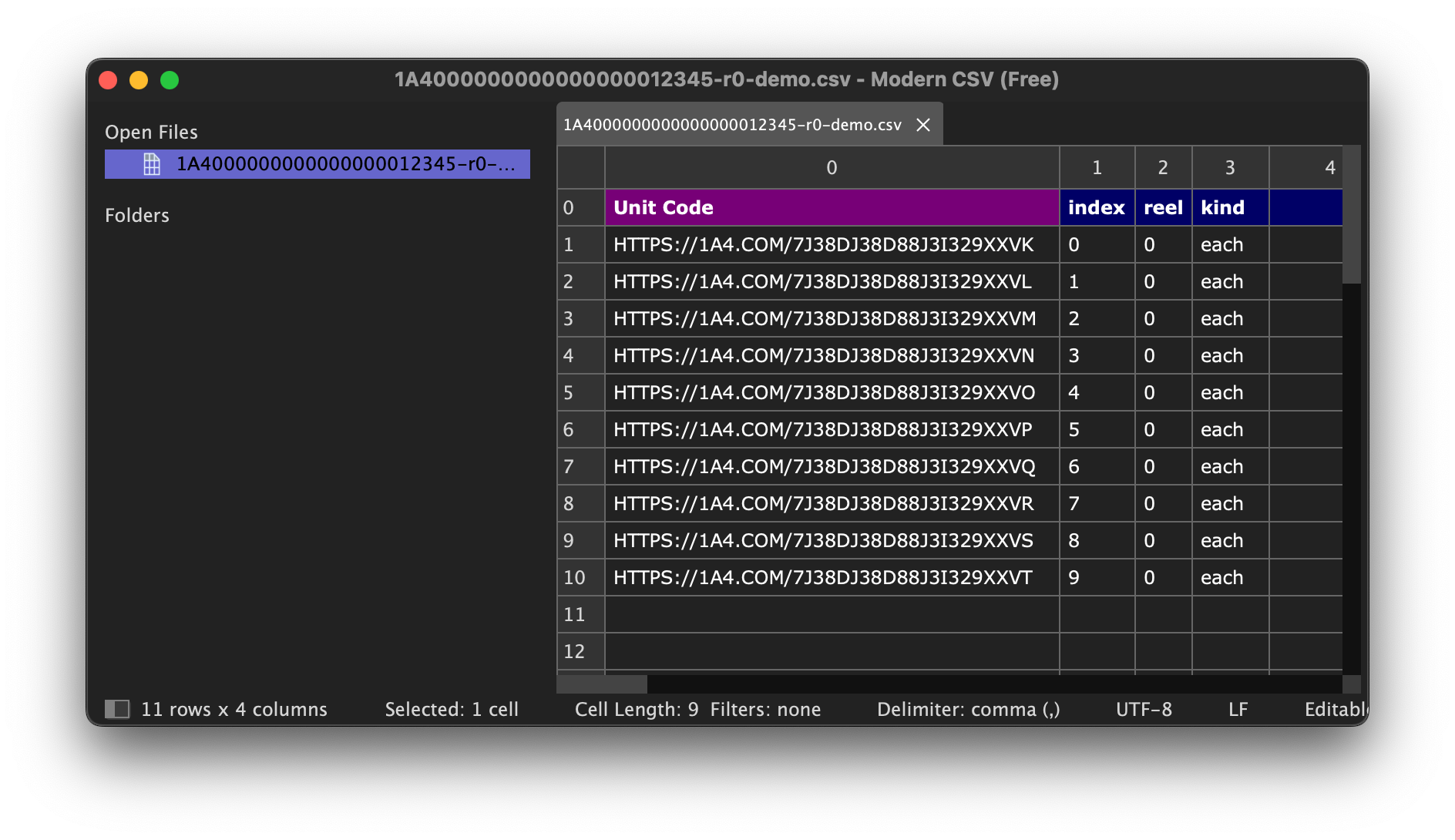
Example CSV with Unit Code column
Step 2: Select a Template
Open the T3 Label Studio and click the TEMPLATE tab. Search for and select a thermal label template that matches your label size (e.g., 2x1 thermal labels).
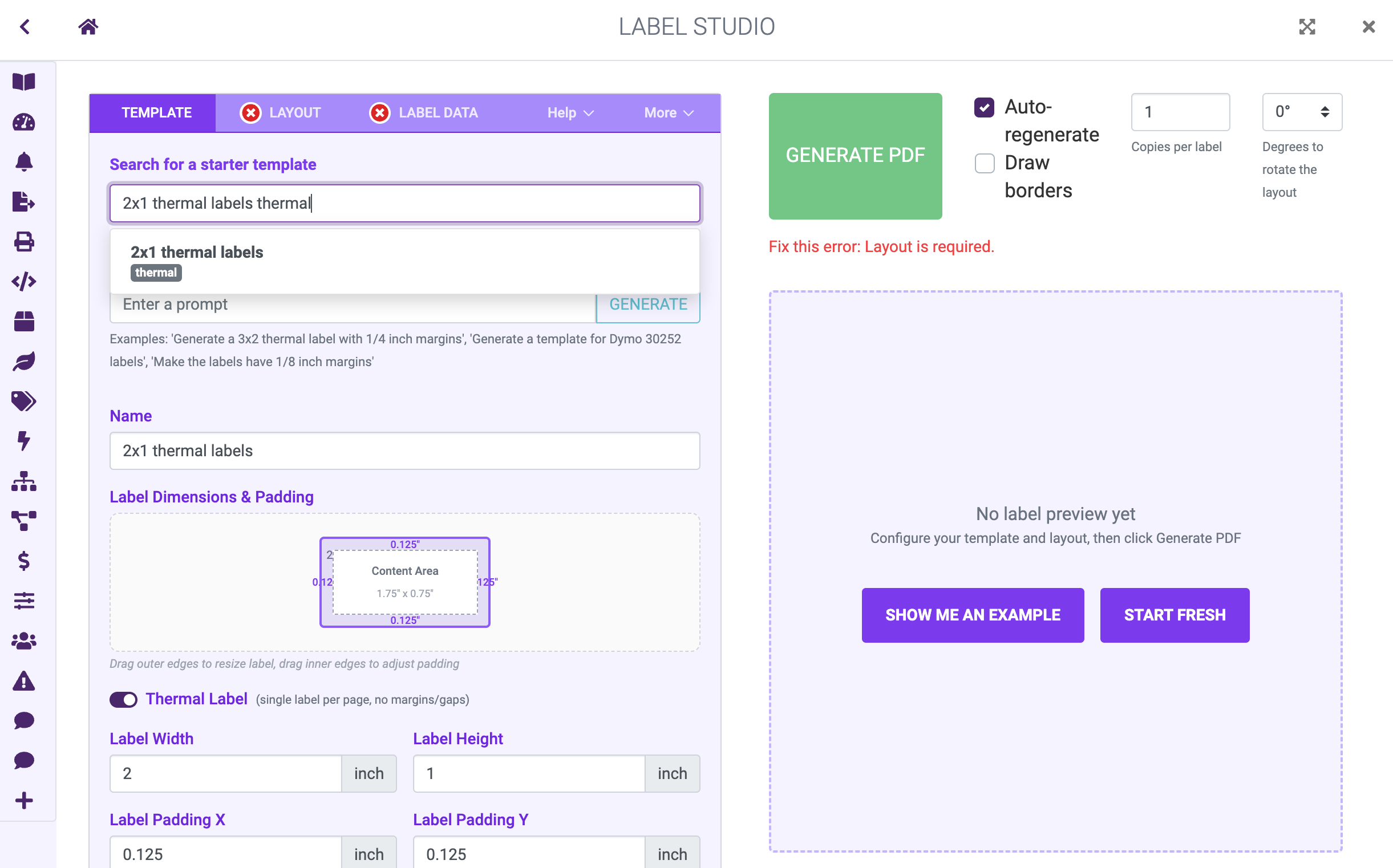
Selecting a 2x1 thermal label template
Step 3: Select a Layout
Click the LAYOUT tab. Search for Retail ID CSV QR Code in the starter layout dropdown and select it.
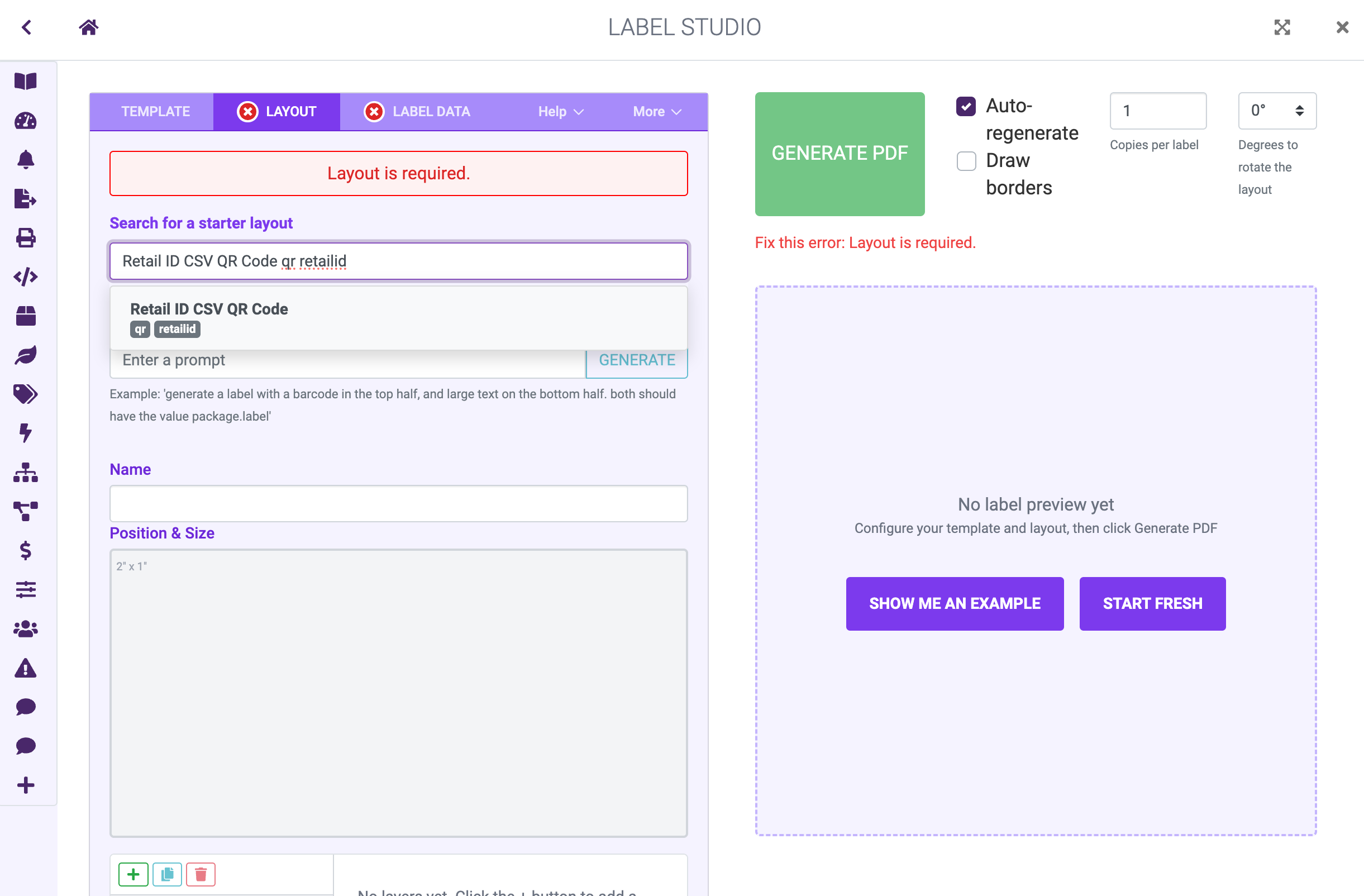
Selecting the Retail ID CSV QR Code layout
Step 4: Load CSV Data
- Click the LABEL DATA tab
- Select Load data from CSV from the data source dropdown
- Click the LOAD CSV LABEL DATA button
-
Select your CSV file
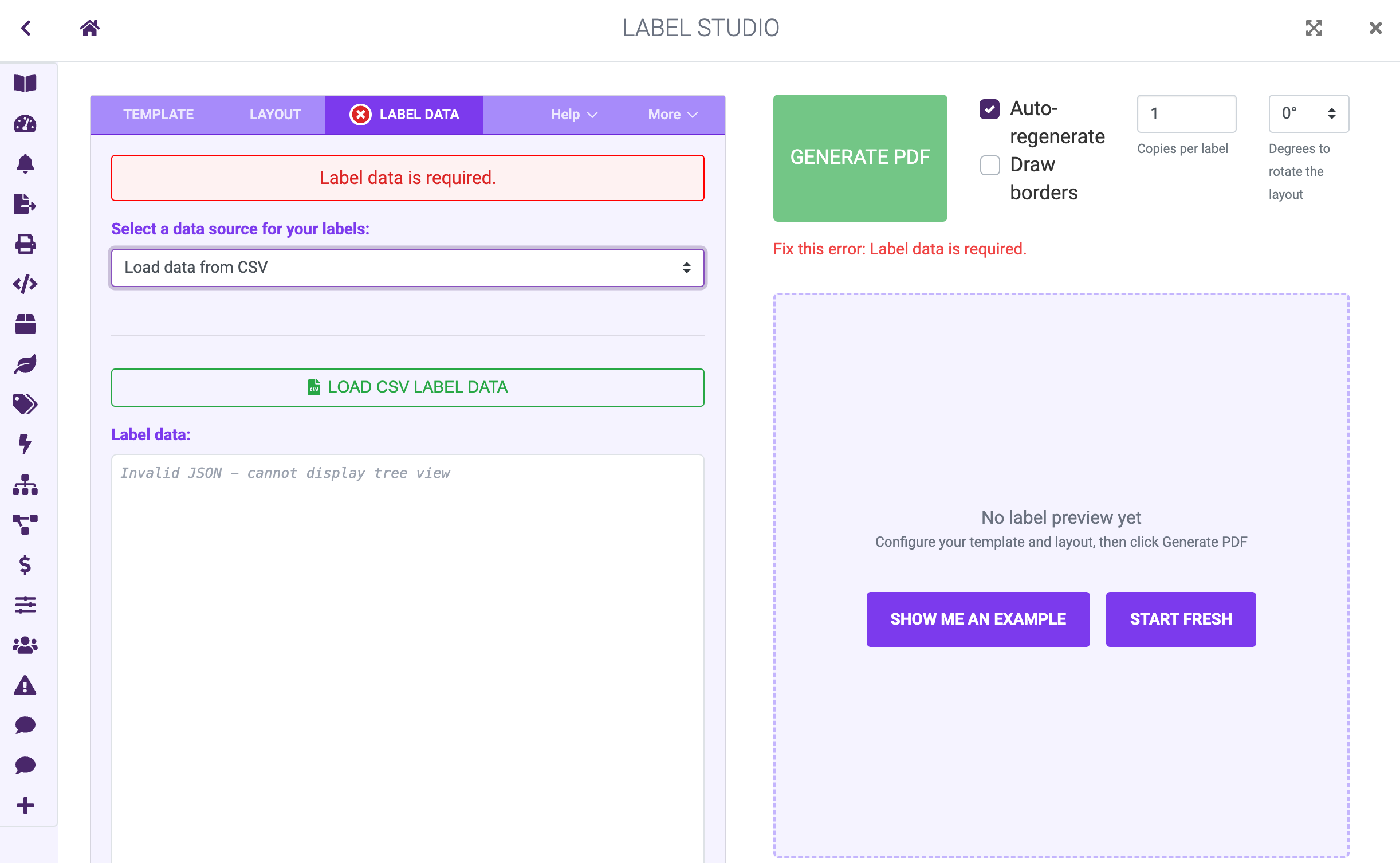
Loading data from CSV
Step 5: Generate Labels
After loading your CSV, the labels will automatically generate. Each row in your CSV produces one QR code label.
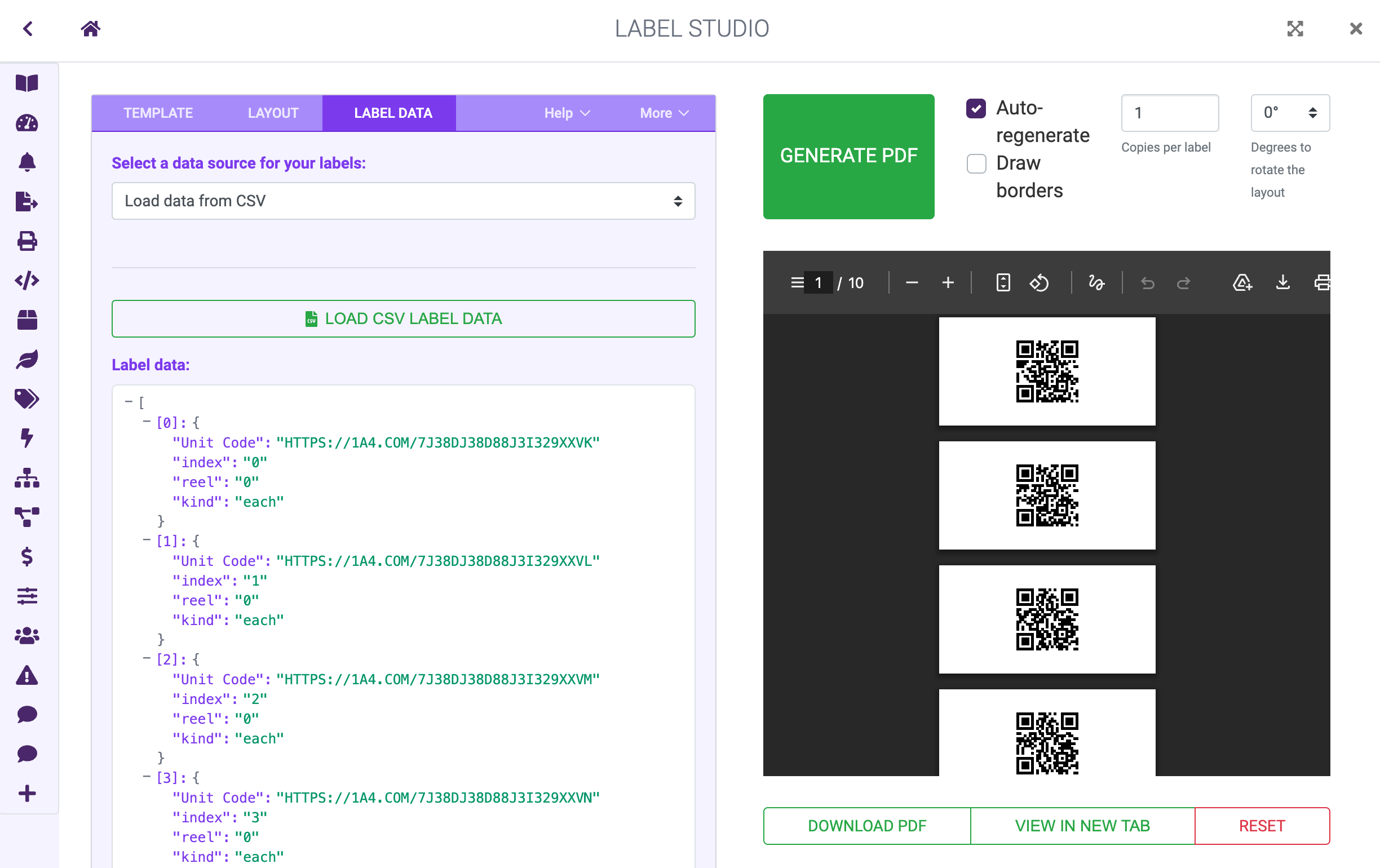
Generated QR code labels from CSV data
Click DOWNLOAD PDF to save the label PDF, or VIEW IN NEW TAB to preview before printing.
Sample Files
- Demo CSV
- Final PDF (download:
t3-retail-id-final.pdf)
Next Steps
- Learn to print your label PDFs
- Create custom label layouts
- Work through the Tutorial for a deeper look at label layouts and Metrc data
- Full reference for Label Templates and Label Layouts